Windows XP Windows 7 Windows 2003 Windows Vista Windows 綜合教學 Linux 系統教學
Windows 10 Windows 8 Windows 2008 Windows NT Windows Server 電腦軟體教學

Windows 10 鎖定畫面啟動任意應用程式:登錄表 Image File Execution Options 劫持技巧

編輯:Windows 10 系統介紹

前言

利用登錄表 Image File Execution Options (IFEO) 機制,可將鎖定畫面左下角「輕鬆存取」按鈕 (utilman.exe) 重導向至任意執行檔 (工作管理員、命令提示字元、瀏覽器等),實現鎖定狀態下啟動程式。

實作步驟

  1. 執行 regedit 開啟登錄表編輯器。
  2. 定位至:
    HKEY_LOCAL_MACHINE\SOFTWARE\Microsoft\Windows NT\CurrentVersion\Image File Execution Options
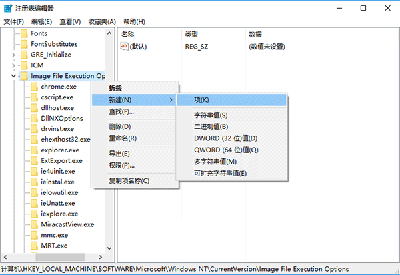
  3. 右鍵 Image File Execution Options → 新增 → 項目 → 命名 utilman.exe。
  4. 選取 utilman.exe,右側空白處右鍵 → 新增 → 字串值 → 命名 Debugger。
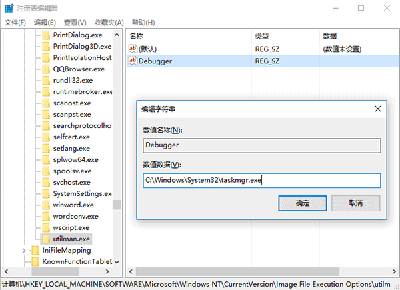
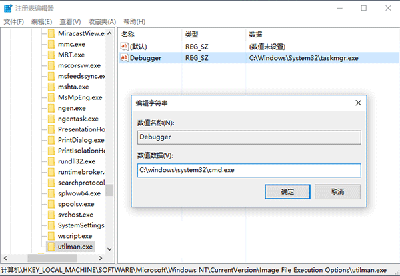
  5. 雙擊 Debugger,數值資料填入目標程式完整路徑:
    工作管理員:C:\Windows\System32\taskmgr.exe
    命令提示字元:C:\Windows\System32\cmd.exe
    PowerShell:C:\Windows\System32\WindowsPowerShell\v1.0\powershell.exe
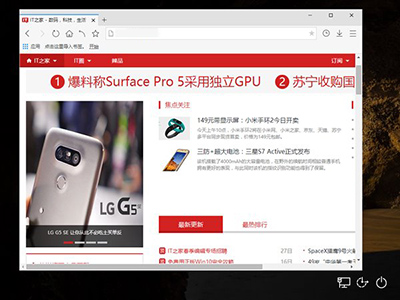
    瀏覽器 (範例):C:\Program Files\Ruanmei\Qiyu\qiyu.exe (依實際安裝路徑調整)
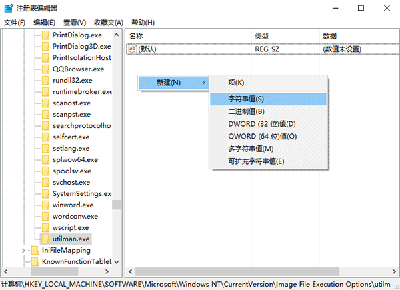
  6. 關閉登錄表,鎖定電腦 (Win+L) 測試:點擊左下角「輕鬆存取」圖示,即啟動指定程式。

IFEO 新增 utilman.exe

新增 Debugger 字串值

Debugger 值 taskmgr.exe

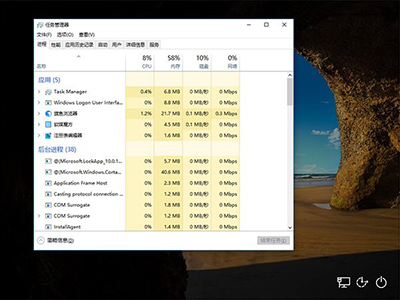
鎖定畫面啟動工作管理員

Debugger 值 cmd.exe

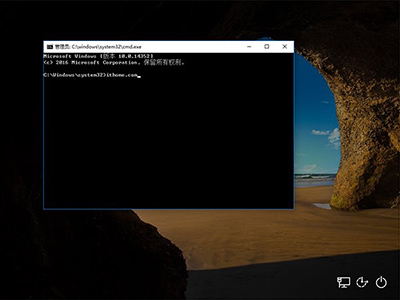
鎖定畫面啟動命令提示字元

鎖定畫面啟動瀏覽器

恢復預設

  • 刪除 Debugger 字串值,或將數值資料設為 0 (保留項目以便日後修改)。
  • 或刪除整個 utilman.exe 項目。

安全性與風險提醒

  • 此技巧屬於「繞過鎖定畫面限制」,若電腦無實體安全防護 (如放置公開場所),他人可利用此途徑啟動命令提示字元執行系統指令。
  • 企業環境請透過群組原則禁用 IFEO 或鎖定畫面輕鬆存取按鈕。
  • 修改 HKLM 需系統管理員權限,建議操作前匯出 Image File Execution Options 分支備份。

Copyright © Windows教程網 All Rights Reserved