Windows Defender(現稱 Microsoft Defender 防毒)是 Win10 內建的安全防護元件。若開啟時彈出 0x80070422 錯誤,代表核心服務 Windows Defender Antivirus Service(服務名稱 WinDefend)處於停用或手動狀態,導致無法啟動。本文提供快速修復步驟與進階排查方向。
services.msc → Enter 開啟服務管理員。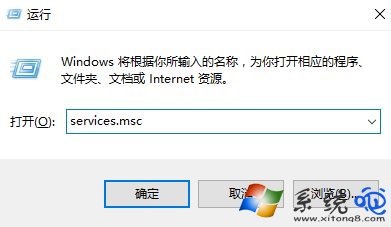
WinDefend)Sense,企業版/啟用 ATP 時存在)mpssvc,防火牆服務,建議同步啟用)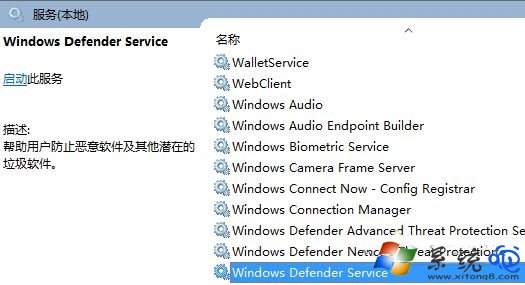
# 以系統管理員身分執行 PowerShell
Set-Service -Name WinDefend -StartupType Automatic -ErrorAction SilentlyContinue
Start-Service -Name WinDefend -ErrorAction SilentlyContinue

Set-Service -Name Sense -StartupType Automatic -ErrorAction SilentlyContinue
Start-Service -Name Sense -ErrorAction SilentlyContinue

Set-Service -Name mpssvc -StartupType Automatic -ErrorAction SilentlyContinue
Start-Service -Name mpssvc -ErrorAction SilentlyContinue

Write-Host "Windows Defender 相關服務已設為自動並啟動,建議重新開機。"
| 可能原因 | 檢查與解決 |
|---|---|
| 第三方防毒軟體衝突 | 完全卸載第三方防毒(使用官方移除工具),Win10 會自動接管 Defender |
| 群組原則/登錄禁用 Defender | 檢查 gpedit.msc → 電腦設定 → 管理範本 → Windows 元件 → Microsoft Defender 防毒 → 關閉 Microsoft Defender 防毒 = 未設定/停用;登錄 HKLM\SOFTWARE\Policies\Microsoft\Windows Defender\DisableAntiSpyware = 0 或刪除 |
| 系統檔案損毀 | 執行 sfc /scannow 並 DISM /Online /Cleanup-Image /RestoreHealth |
| 服務依賴項未啟動 | 確認 Remote Procedure Call (RPC)、Windows Management Instrumentation、Security Center 均為運行中 |
| Windows Update 卡住 | 重置 Update 元件:net stop wuauserv && net stop bits && ren %systemroot%\SoftwareDistribution SoftwareDistribution.old && net start wuauserv && net start bits |
Get-MpComputerStatus 應顯示 AMServiceEnabled: True、AntivirusEnabled: True、RealTimeProtectionEnabled: True。ERROR_SERVICE_DISABLED)。依照上述步驟操作,幾分鐘內即可解決 0x80070422 錯誤,讓 Windows Defender 重新為系統提供即時防護。