Windows XP Windows 7 Windows 2003 Windows Vista Windows 綜合教學 Linux 系統教學
Windows 10 Windows 8 Windows 2008 Windows NT Windows Server 電腦軟體教學

Win10 徹底關閉操作中心通知:登錄表新增 DisableNotificationCenter=1 一鍵靜音

編輯:Windows 10 系統介紹

Win10 操作中心 (通知中心) 頻繁彈出系統/應用程式通知,干擾專注工作。透過登錄表 HKCU\SOFTWARE\Policies\Microsoft\Windows\Explorer\DisableNotificationCenter 設為 1,可徹底停用操作中心圖示與通知彈出,不影響系統核心功能。

登錄表設定步驟

  1. Win+R → regedit。
  2. 展開:
    HKEY_CURRENT_USER\SOFTWARE\Policies\Microsoft\Windows\Explorer
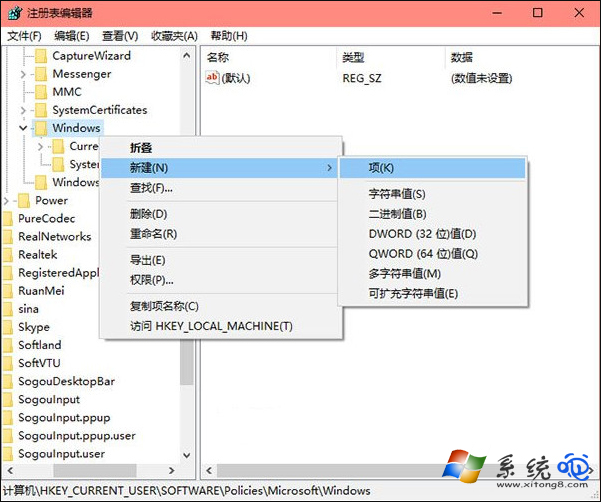
    若無 Explorer 項目,右鍵 Windows → 新增 → 項目 → 命名 Explorer。
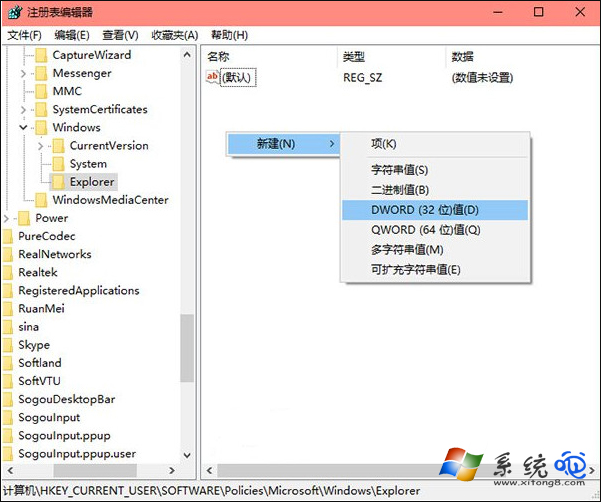
  3. 於 Explorer 下右鍵 → 新增 → DWORD (32 位元) 值 → 命名 DisableNotificationCenter。
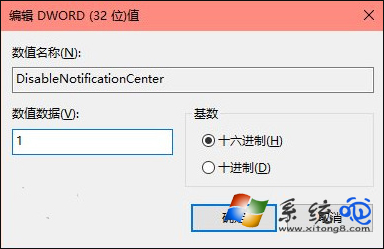
  4. 雙擊修改數值資料為 1 → 確定。
  5. 登出/重新開機生效,工作列右下角操作中心圖示消失,通知彈出停止。

新增 Explorer 項目

新增 DisableNotificationCenter DWORD

設定數值為 1

還原操作中心

  • 刪除 DisableNotificationCenter 值,或改為 0,登出/重開機生效。

⚠️ 影響範圍提醒

  • **不再接收**:Windows Update 重開機提醒、防火牆/防毒狀態警告、應用程式推播通知 (郵件、即時通訊、行事曆)。
  • **不影響**:系統核心服務運行、Windows Update 背景下載安裝、防火牆/防毒實際防護功能。
  • 企業環境建議改用群組原則:使用者設定 → 系統管理範本 → 開始功能表和工作列 → 移除通知區域圖示 或 關閉 toast 通知,集中管控。

替代方案:專注助手 (Focus Assist)

若不想徹底關閉,僅需特定時段靜音:
設定 → 系統 → 專注助手 → 設定自動規則 (「當我在玩遊戲時」、「當我複製螢幕時」、「特定時間」) → 選擇「僅優先清單」或「僅鬧鐘」。

登錄表 DisableNotificationCenter=1 可徹底關閉 Win10 操作中心與通知彈出;需彈性控制請改用「專注助手」自動規則。

Copyright © Windows教程網 All Rights Reserved