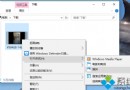
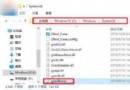
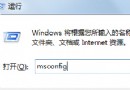
Windows 10 預設瀏覽器關聯常因第三方軟體安裝、系統更新或惡意程式被竄改,導致點擊連結、開啟 HTML 檔案時跳出非預期瀏覽器。雖可在「設定 → 應用程式 → 預設應用程式」重新指定,但若介面操作無效,透過登錄編輯器(Registry Editor)直接修復 .htm/.html 檔案關聯是最徹底的解法。
regedit → Enter 開啟登錄編輯器。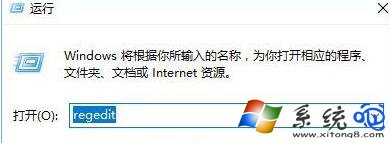
HKEY_CURRENT_USER\Software\Classes.htm 與 .html 子鍵,查看 (預設) 字串值資料。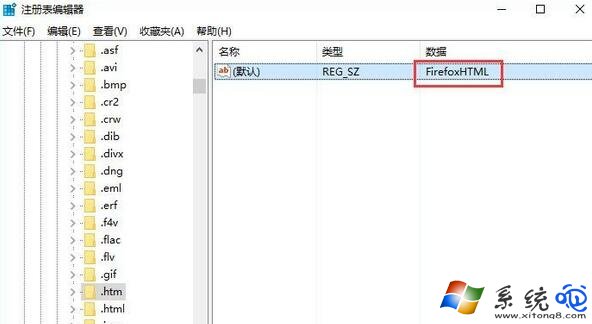
htmlfile(例如 FirefoxHTML、ChromeHTML、EdgeHTML 等),雙擊修改為 htmlfile。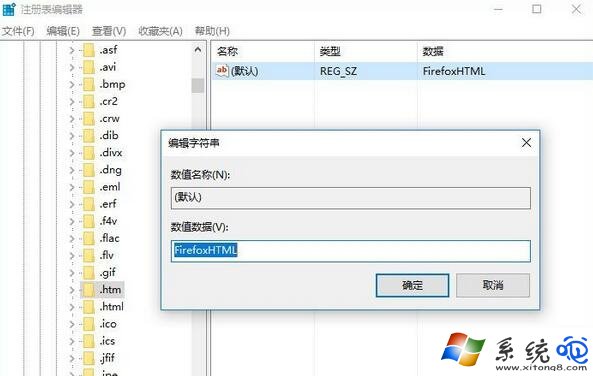
HKEY_CURRENT_USER\Software\Microsoft\Windows\Shell\Associations\UrlAssociations\http\UserChoice 及 https 子鍵的 ProgId 值,若非 AppX...MicrosoftEdge 或預期瀏覽器 ProgId,可刪除該 UserChoice 鍵值,讓系統重新詢問或套用「預設應用程式」設定。explorer.exe 即可生效。htmlfile 即可恢復系統預設?htmlfile 是 Windows 內建的 ProgID,對應系統預設的 HTML 檔案處理器(早期為 IE,Win10 1709 後為 Edge/EdgeHTML,新版 Edge Chromium 則為 AppX...MicrosoftEdge)。htmlfile 等於告訴系統:「請用目前設定的預設瀏覽器開啟」,而非綁定特定瀏覽器的 ProgID。.htm、.html、.shtml、.xht、.xhtml → 全部設為同一瀏覽器。Computer Configuration → Administrative Templates → Windows Components → File Explorer → Set a default associations configuration file 鎖定關聯設定。# 查詢目前 .html 關聯
Get-ItemProperty 'HKCU:\Software\Classes\.html' | Select-Object -ExpandProperty '(default)'
# 查詢 http/https 協定關聯
Get-ItemProperty 'HKCU:\Software\Microsoft\Windows\Shell\Associations\UrlAssociations\http\UserChoice' | Select-Object ProgId
Get-ItemProperty 'HKCU:\Software\Microsoft\Windows\Shell\Associations\UrlAssociations\https\UserChoice' | Select-Object ProgId
掌握登錄修復技巧,下次預設瀏覽器被竄改時即可在一分鐘內精準修復,無需重裝瀏覽器或重置系統。