安裝第三方防毒/防火牆後,Windows 內建防火牆通知與安全性中心服務持續彈窗干擾。提供兩種方法徹底停用通知。
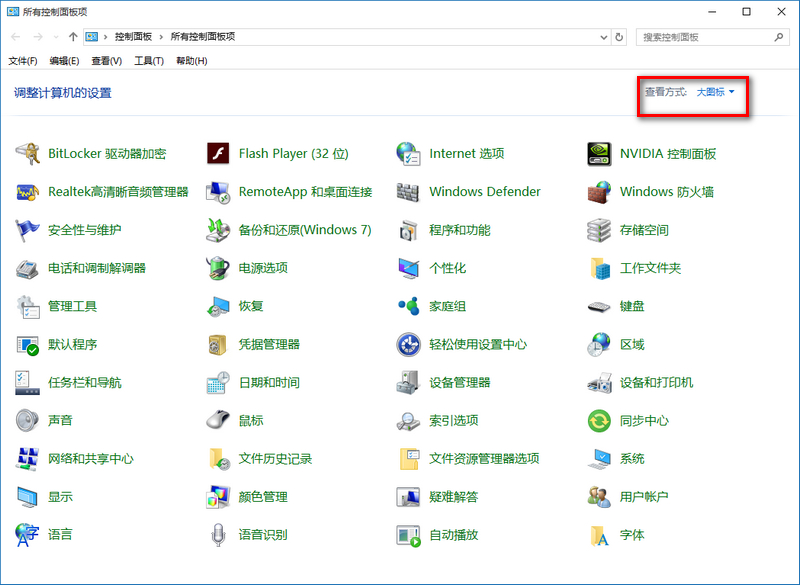
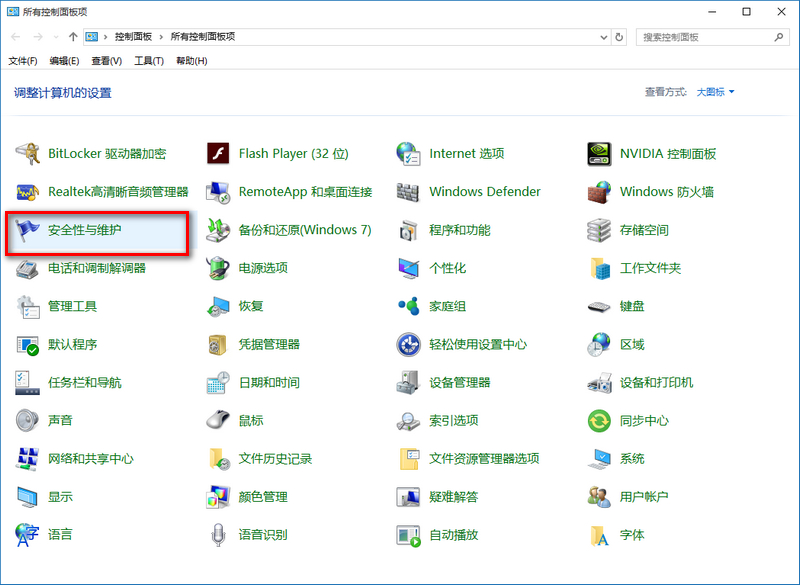
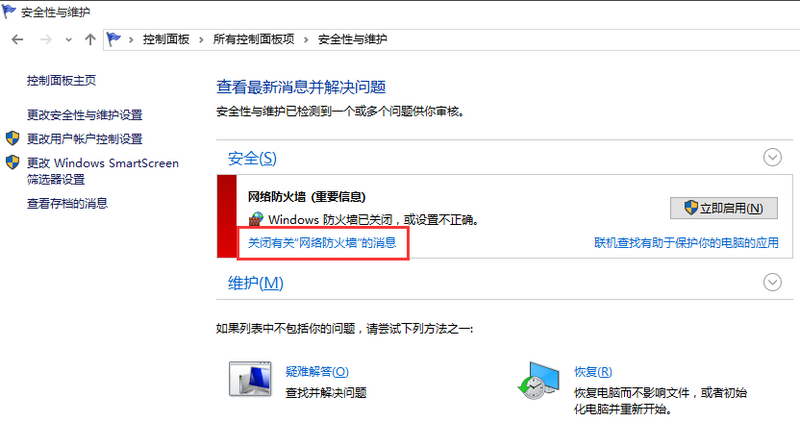
services.msc。SecurityCenter 服務。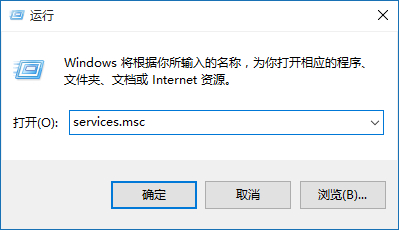
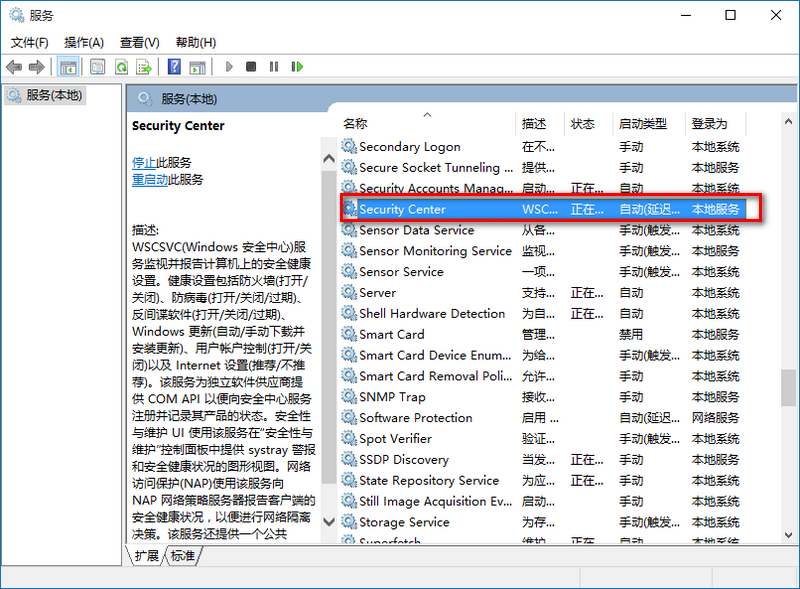
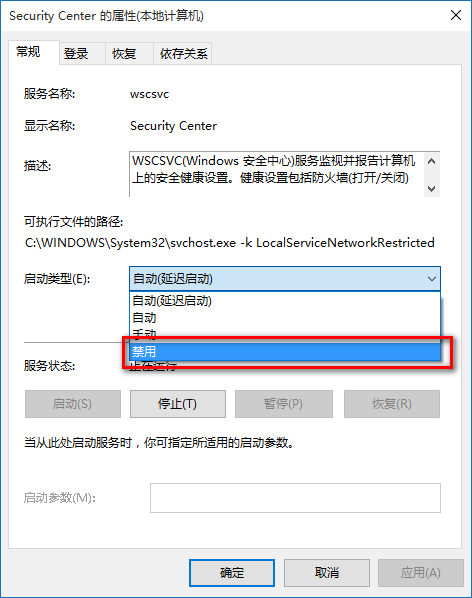
SecurityCenter 監控防火牆、防毒、反間諜、Windows Update、UAC、Internet 設定等安全狀態,停用後「動作中心」圖示將不再顯示安全性警示旗標。
Win10 應用程式視窗切換全螢幕模式:Microsoft Store 範例
Win10 群組原則啟動彈窗「命名空間已定義」修復:同 ID 22449 刪除衝突 ADMX
Win10 飛行模式關不掉?乾淨啟動排除第三方服務衝突完整教學
Win10 升級後禁用網路連線報錯?命令列重置 Winsock 與 TCP/IP 解決
Win10 升級 Build 9879 圖文教學:掛載 ISO → 執行 setup.exe → 保留個人檔案/應用/無保留三選一
Windows 10 回復上一版本 (回滾) 完整教學:條件、步驟與注意事項