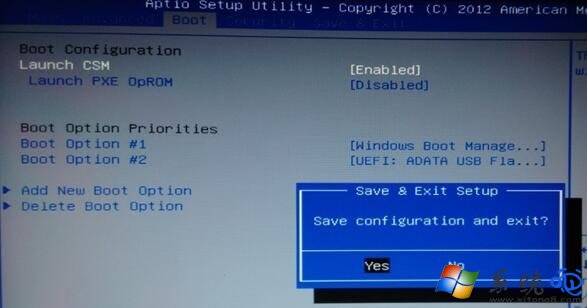
BIOS 進階設定中 Launch CSM (Compatibility Support Module) 呈灰色無法切換,主因 Secure Boot Control (安全啟動控制) 為 Enabled。關閉 Secure Boot 即可解鎖 CSM 選項,支援 UEFI/Legacy 雙模式開機 (安裝 Win7、Linux 等非 UEFI 系統必需)。
操作步驟 (以常見 AMI/UEFI BIOS 為例)
- 開機連按 Del/F2/F10 進入 BIOS Setup。
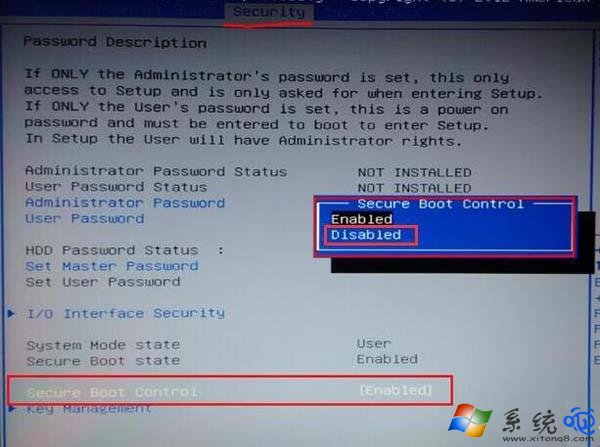
- 切換至 Security (安全性) 分頁。
- 找到 Secure Boot Control → 設為 Disabled。
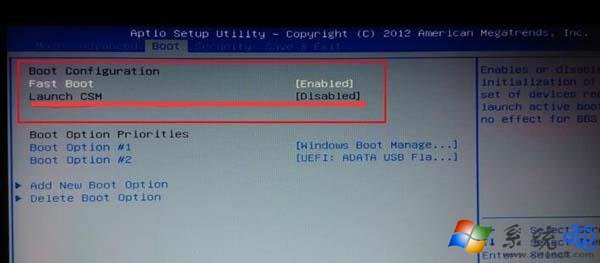
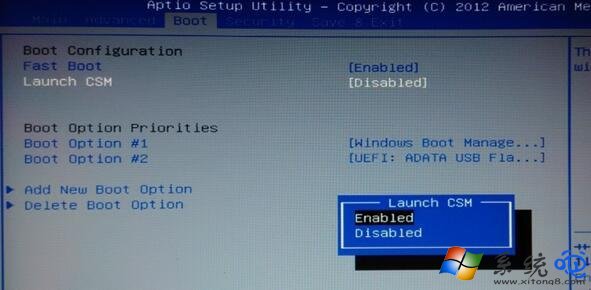
- 返回 Boot (開機) 分頁 → Launch CSM 應已可選 → 設為 Enabled (啟用 Legacy 支援) 或 Disabled (純 UEFI)。
- F10 儲存離開 → 重開機。
補充說明
- 不同廠商 BIOS 介面術語不同:
• Secure Boot Control 可能稱 Secure Boot、UEFI Secure Boot、Windows UEFI Firmware Update。
• Launch CSM 可能稱 CSM Support、Legacy Boot、UEFI/Legacy Boot。
- 關閉 Secure Boot 會導致 Windows 8/8.1/10/11 的 BitLocker、Windows Hello、VBS (虛擬化安全性) 等功能受限或需重新註冊金鑰。
- 純 UEFI 安裝 Win10/11 **不需** 啟用 CSM,保持 Secure Boot On + CSM Off 最安全。
- 安裝 Win7、舊版 Linux、ESXi 等無 UEFI 支援作業系統時,需 Secure Boot Off + CSM On (Legacy Only 或 UEFI & Legacy)。