Windows XP Windows 7 Windows 2003 Windows Vista Windows 綜合教學 Linux 系統教學
Windows 10 Windows 8 Windows 2008 Windows NT Windows Server 電腦軟體教學
您现在的位置: Windows教程網 >> Windows教程 >  >> Windows 綜合教學 >> 關於 Windows

Win10 Chrome 更新失敗錯誤 0x00000?清除快取一鍵修復

編輯:關於 Windows

Windows 10 使用者在更新 Google Chrome 時,若遇到錯誤代碼 0x00000 導致更新中斷,通常是因為瀏覽器快取檔案過多或損毀所致。只需清除 Chrome 的快取資料夾,即可讓更新機制重新運作。

快速修復步驟

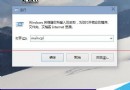
  1. 按 Win + E 開啟檔案總管。
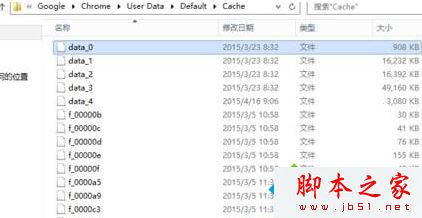
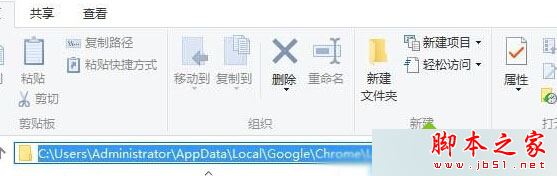
  2. 在網址列貼上並前往:
    %USERPROFILE%\AppData\Local\Google\Chrome\User Data\Default\Cache
  3. 完全關閉 Chrome 瀏覽器(確認工作管理器無殘留程序)。
  4. 將 Cache 資料夾內所有檔案刪除。
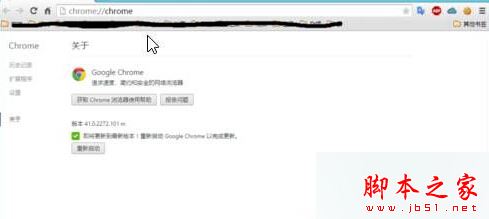
  5. 重新開啟 Chrome,網址列輸入 chrome://chrome 按 Enter,瀏覽器將自動檢查並繼續更新;更新完成後提示重新啟動即可。
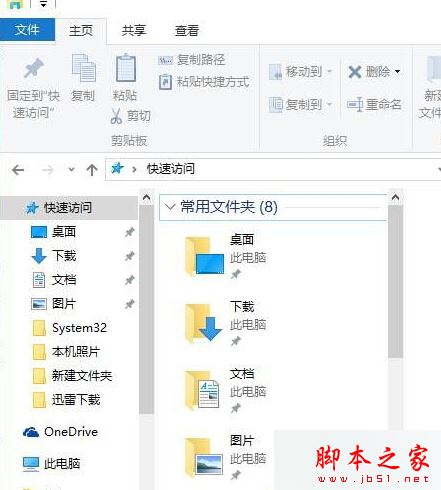
開啟檔案總管
前往 Cache 路徑
刪除快取檔案
Chrome 重新更新

此方法同樣適用於其他 Chromium 核心瀏覽器(如 Edge、Brave)的更新卡住問題。若清除快取後仍無法更新,建議重新安裝瀏覽器或檢查網路連線與防火牆設定。

Copyright © Windows教程網 All Rights Reserved