Windows 8 消費者預覽版桌面右下角永久顯示浮水印「Windows 8 Consumer Preview 評估版本 Build 8250」,對潔癖使用者極度干擾。本文提供三種移除方案:自動化工具、手動取代系統檔案、最簡單的「擴充顯示」側投影法。
RemoveX32-Win8CP(userinit)+Build(shell32).exe) >「以系統管理員身分執行」。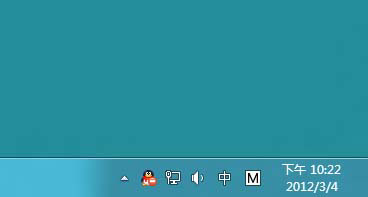
shell32.dll.mui 擁有權與完整權限:takeown /f C:\Windows\System32\zh-CN\shell32.dll.mui
icacls C:\Windows\System32\zh-CN\shell32.dll.mui /grant Administrators:(F,WDAC)
icacls C:\Windows\System32\zh-CN\shell32.dll.mui /grant Users:(F,WDAC)
shell32.dll.mui.new 重命名為 shell32.dll.mui,手動取代 C:\Windows\System32\zh-CN\shell32.dll.mui。mcbuilder 重建快取。userinit.exe 擁有權與權限並取代:takeown /f C:\Windows\System32\userinit.exe
icacls C:\Windows\System32\userinit.exe /grant Administrators:(F,WDAC)
icacls C:\Windows\System32\userinit.exe /grant Users:(F,WDAC)
C:\Windows\System32\userinit.exe (來自工具包)。C:\Windows\w8loader.exe 安裝載入器。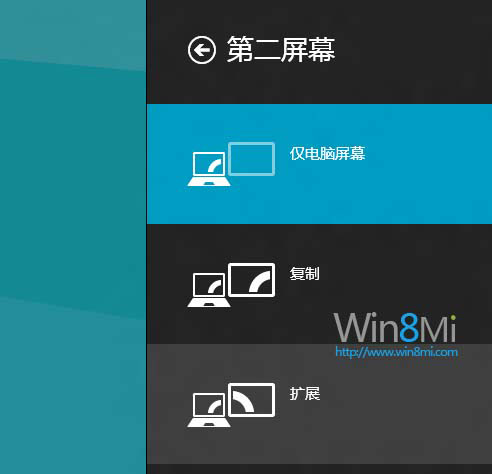
| 方案 | 完整度 | 風險 | 持久性 | 推薦度 |
|---|---|---|---|---|
| 自動化工具 | 32位完整/64位部分 | 低 (自動備份) | 永久 | ⭐⭐⭐⭐ (32位系統) |
| 手動取代 | 完整 | 中 (需取得系統檔案權限) | 永久 | ⭐⭐⭐ (64位系統/進階用戶) |
| 擴充顯示法 | 即時隱藏 | 零 | 臨時 (切回單螢幕恢復) | ⭐⭐⭐⭐⭐ (最簡單、無風險、即時) |
手動法來源:遠景論壇。工具法為社群整合打包。擴充顯示法為使用者發現的巧妙副作用利用。