Windows XP Windows 7 Windows 2003 Windows Vista Windows 綜合教學 Linux 系統教學
Windows 10 Windows 8 Windows 2008 Windows NT Windows Server 電腦軟體教學

Windows 8 開機直接進入桌面:建立 .scf 捷徑搭配工作排程器實現跳過 Metro 畫面

編輯:Windows 8 系統介紹

Windows 8 預設開機進入 Metro 開始畫面,許多習慣傳統桌面的使用者希望能直接看到桌面。本教學透過建立特殊的 .scf 捷徑,並利用工作排程器在登入時自動執行,達到開機直進桌面的效果。

步驟 1:建立 Show Desktop.scf 檔案

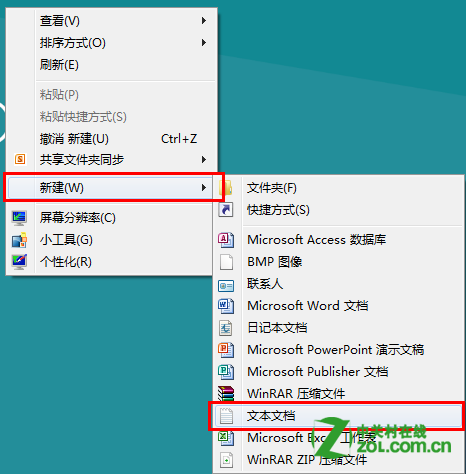
  1. 桌面右鍵 → 「新增」→「文字文件」。
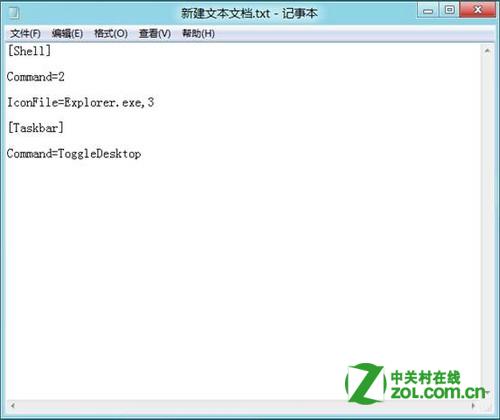
  2. 開啟貼上以下內容:
[Shell]
Command=2
IconFile=Explorer.exe,3
[Taskbar]
Command=ToggleDesktop
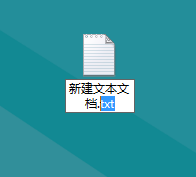
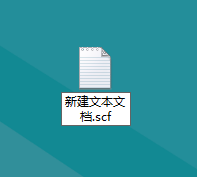
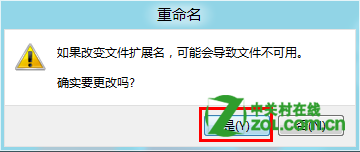
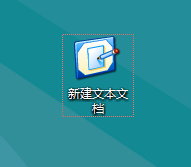
  1. 另存為,檔名改為 Show Desktop.scf(副檔名從 .txt 改為 .scf),確認變更副檔名。
步驟 2:建立工作排程器任務

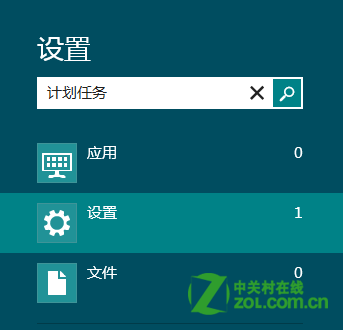
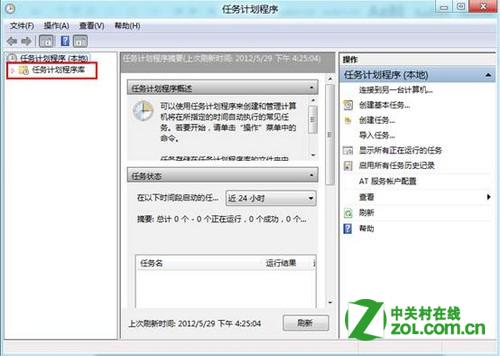
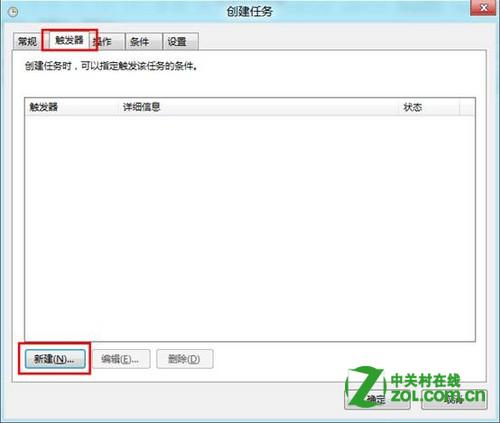
  1. 按 Win+W 搜尋「排程工作」並開啟。
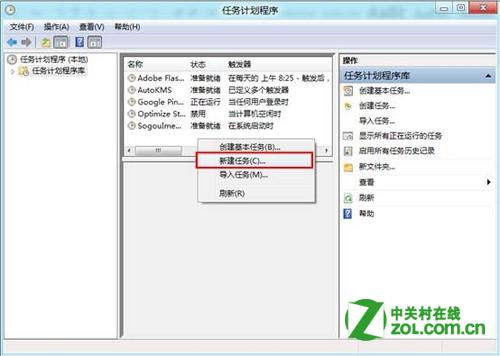
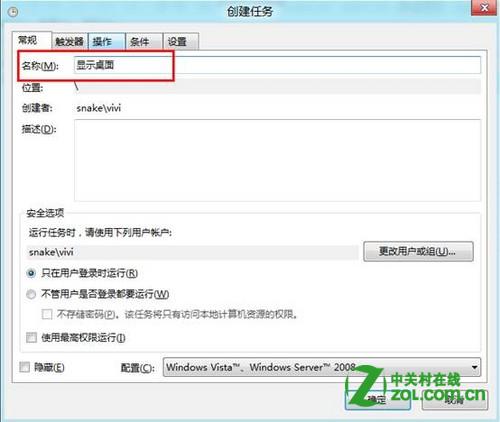
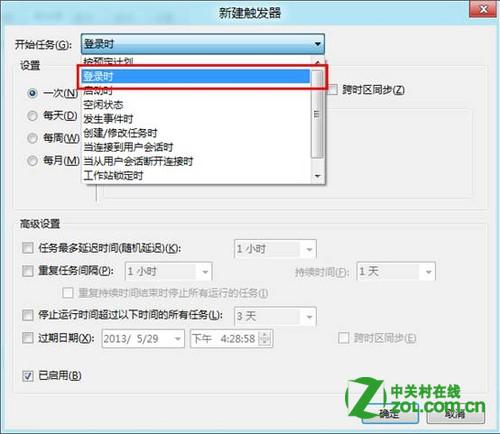
  2. 右側選「建立基本工作」→ 名稱輸入「顯示桌面」→ 觸發器選「登入時」。
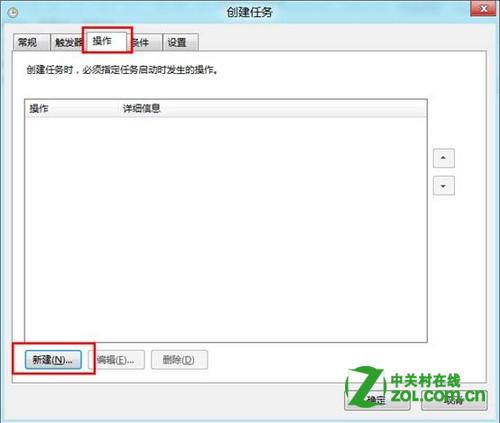
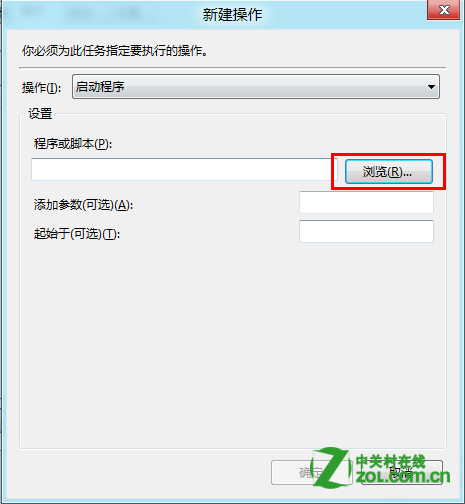
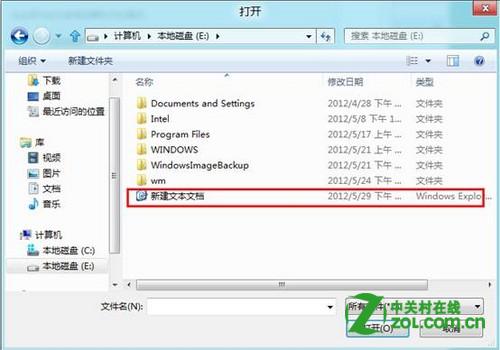
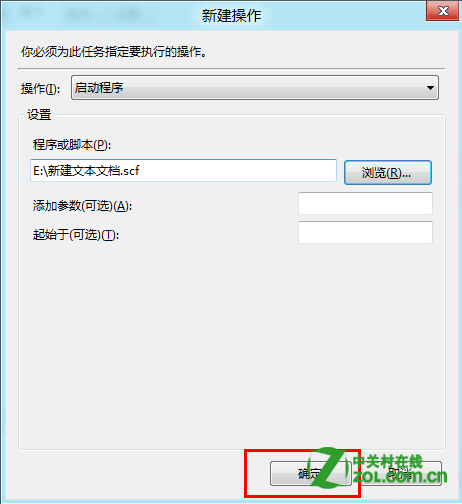
  3. 動作選「啟動程式」→ 瀏覽選取剛建立的 Show Desktop.scf。
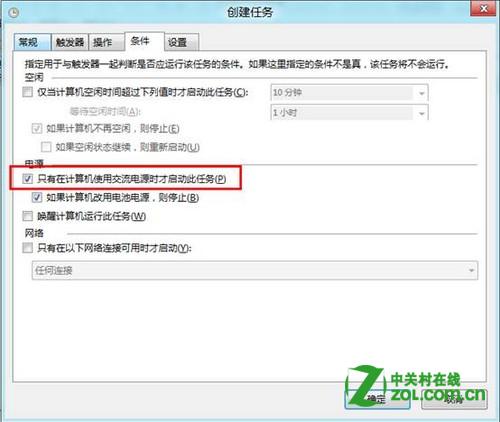
  4. 完成精靈後,右鍵該任務 → 「內容」→「條件」頁籤 → 取消勾選「僅在使用交流電源時啟動」。

重新開機後,系統將自動執行該捷徑,直接呈現傳統桌面。注意:此法適用於 Windows 8 初版;Windows 8.1 內建「登入時直接進入桌面」選項,可在工作列屬性 → 「導覽」頁籤中設定。

Copyright © Windows教程網 All Rights Reserved