Windows 7 桌面圖示文字下方出現 白色方塊背景、陰影消失、或圖示顯示異常,是 圖示快取檔 IconCache.db 損毀 所致。透過命令提示字元結束 Explorer、刪除快取、重啟 Explorer 三步驟即可重建正常圖示顯示。
taskkill /im explorer.exe /f
cd /d %userprofile%\AppData\Local
del IconCache.db /a
start explorer.exe
exit
cmd → 開啟命令提示字元。

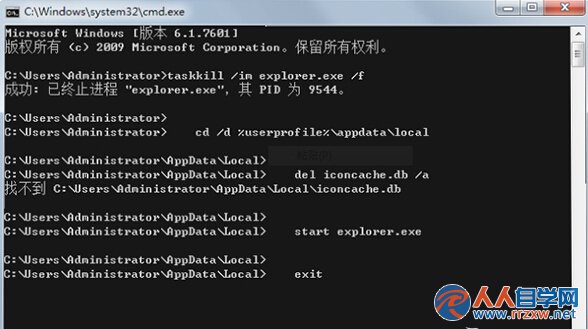
taskkill /im explorer.exe /f:強制結束檔案總管釋放 IconCache.db 鎖定。cd /d %userprofile%\AppData\Local:切換到快取資料夾 (隱藏)。del IconCache.db /a:刪除損毀的快取檔 (含隱藏/系統屬性)。start explorer.exe:重新啟動檔案總管,系統自動重建新的 IconCache.db。此法同樣適用於工作列釘選圖示異常、開始功能表圖示空白、資料夾圖示不更新等快取相關問題。