Windows XP Windows 7 Windows 2003 Windows Vista Windows 綜合教學 Linux 系統教學
Windows 10 Windows 8 Windows 2008 Windows NT Windows Server 電腦軟體教學

Win7 工作列喇叭圖示消失「未安裝音量控制程式」修復:補回 sndvol32.exe、修復小喇叭工具、服務啟動、登錄表啟動項還原

編輯:Win7 系統應用技巧

Win7 工作列通知區域無音量圖示,控制台「音效」→「將音量圖示放入工作列」勾選後提示「由於未安裝音量控制程式,Windows 無法在工作列顯示音量控制」。核心原因:**sndvol.exe 系統檔案遺失/損毀**、相關服務停用、啟動項註冊表遺失。本文提供四層次修復方案。

方案一:補回 sndvol.exe 系統檔案 (最直接)

  • 檔案路徑:C:\Windows\System32\sndvol.exe (Win7 為 sndvol.exe,XP 為 sndvol32.exe)。
  • 來源獲取:
    • 同版本 Win7 正常電腦複製。
    • Win7 安裝光碟/ISO 解壓 install.wim 提取 (需 DISM/7-Zip)。
    • 可信系統檔案庫網站下載 (如 DLL-files.com、WinBubbles 附帶)。
  • 複製至 C:\Windows\System32\,重新開機或重新登入。

方案二:使用「修復小喇叭工具」自動修復

  • 搜尋下載「修復小喇叭工具」/「Sound Icon Fix」/「Volume Control Fix」等免安裝小工具。
  • 以管理員身分執行,按提示一鍵修復,重開機生效。

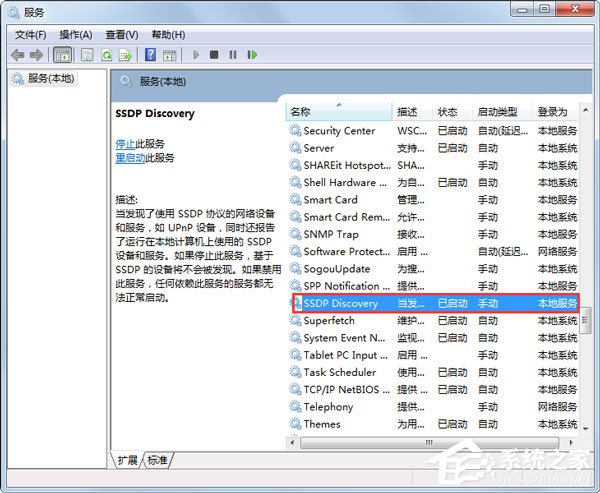
方案三:啟動相關系統服務

  1. Win+R → services.msc。
  2. 找到並設為「自動」且「啟動」:
    • SSDP Discovery Service (SSDP 探索服務)
    • Universal Plug and Play Device Host (通用即插即用裝置主機)
  3. 重新開機。


方案四:登錄表還原啟動項 Systray

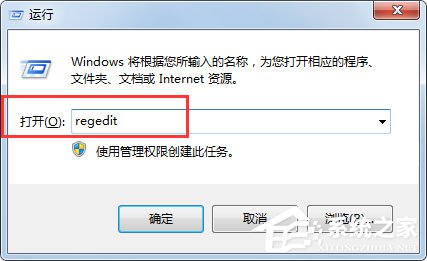
  1. Win+R → regedit。
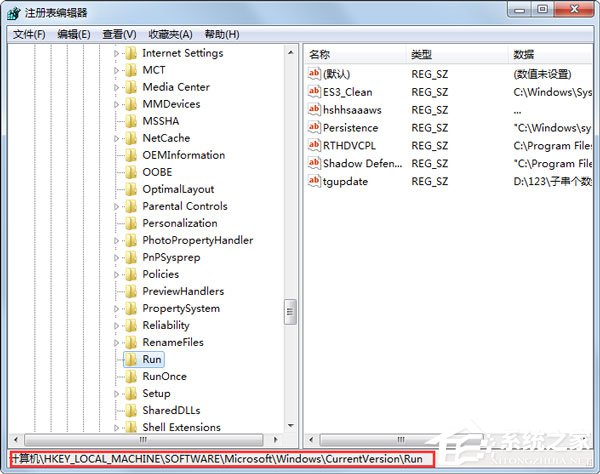
  2. 導航至:
    HKEY_LOCAL_MACHINE\SOFTWARE\Microsoft\Windows\CurrentVersion\Run
  3. 右鍵右側空白 →「新增」→「字串值」→ 名稱:Systray。
  4. 雙擊 Systray → 數值資料:C:\Windows\System32\Systray.exe (Win7 實為 sndvol.exe,但啟動項慣用 Systray 名稱)。
  5. 重新開機生效。

系統檔案完整性修復 (根治)

  1. 管理員 CMD 執行:sfc /scannow 掃描並修復所有受保護系統檔案 (含 sndvol.exe)。
  2. 若 sfc 無法修復:
    DISM /Online /Cleanup-Image /RestoreHealth (需聯網下載健康映像) → 再執行 sfc /scannow。

小結

Win7 喇叭圖示消失修復優先序:**sfc /scannow 系統檔案修復 (根治) → 補回 sndvol.exe → 修復小喇叭工具 → 啟動 SSDP/UPnP 服務 → 登錄表還原 Systray 啟動項**。建議優先執行 sfc /scannow,若無法修復再依序嘗試其他方案。

Copyright © Windows教程網 All Rights Reserved