Windows XP Windows 7 Windows 2003 Windows Vista Windows 綜合教學 Linux 系統教學
Windows 10 Windows 8 Windows 2008 Windows NT Windows Server 電腦軟體教學

Windows 10 CPU 佔用率過高怎麼辦?四大常見原因與解決方案完整整理

編輯:Win10 系統基礎知識

Windows 10 系統閒置或輕度使用時 CPU 佔用率持續偏高,導致風扇狂轉、效能下降。以下整理四大常見原因及對應解決方法,按可能性排序。

方法一:停用 TimeBroker 服務 (影響 Cortana)

原因:TimeBroker 服務 (負責觸發背景任務) 有時會失控佔用大量 CPU。

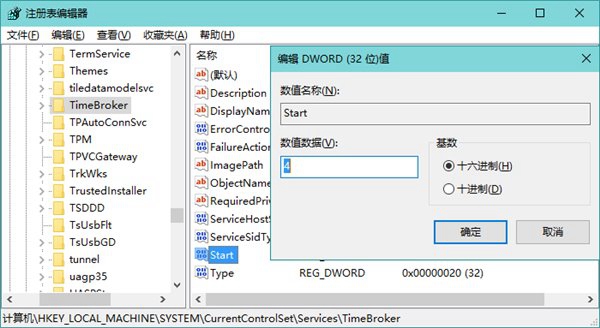
  1. 開啟登錄編輯器 (regedit),定位至:
    HKEY_LOCAL_MACHINE\SYSTEM\CurrentControlSet\Services\TimeBroker
  2. 修改右側 Start 值從 3 (手動) 改為 4 (停用)。
  3. 修改 TimeBroker Start 值為 4

  4. 重開機生效。

副作用:Cortana (小娜) 功能將受限或無法使用。若不使用 Cortana 可放心停用。

方法二:關閉 Windows 更新 P2P 分享 (傳遞優化)

原因:背景以 P2P 方式上傳更新檔給其他電腦,佔用頻寬與 CPU。

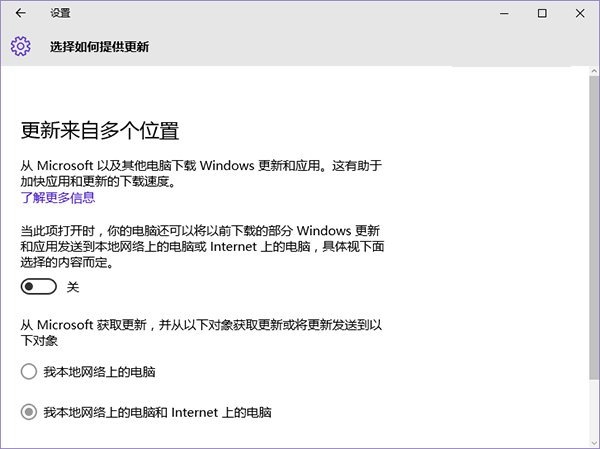
  1. 「設定」→「更新與安全性」→「Windows 更新」→「進階選項」→「傳遞優化」。
  2. 關閉 「允許從其他電腦下載」 (或僅允許「本機網路電腦」)。
  3. 關閉傳遞優化 P2P 分享

方法三:關閉 Windows 聚焦 (鎖定畫面動態圖片)

原因:家用版啟用「Windows 聚焦」作為鎖定畫面時,背景下載高解析度圖片、索引分析會佔用 CPU。
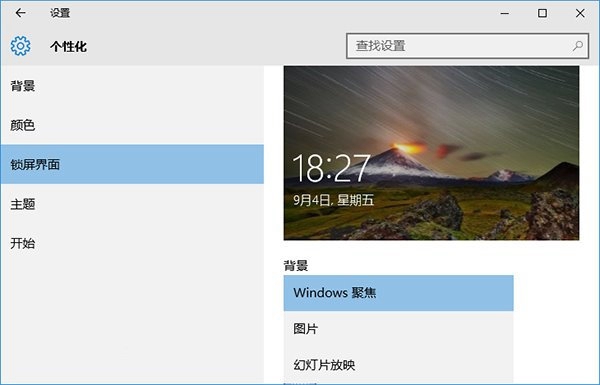
  1. 「設定」→「個人化」→「鎖定畫面」。
  2. 背景選擇 「圖片」 或 「幻燈片播放」,而非「Windows 聚焦」。
  3. 關閉 Windows 聚焦鎖定畫面

方法四:關閉 Windows 提示功能

原因:系統根據使用習慣推送提示通知,背景分析行為佔用資源。

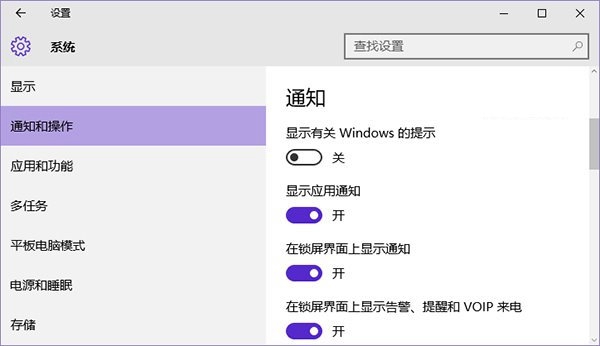
  1. 「設定」→「系統」→「通知與動作」。
  2. 關閉 「取得使用 Windows 時的秘訣與建議」 (或「顯示有關 Windows 的提示」)。
  3. 關閉 Windows 提示功能

進階排查建議

  • 開啟「工作管理員」(Ctrl+Shift+Esc) → 「詳細資料」頁籤,按 CPU 欄排序,找出真兇進程 (如 System, Antimalware Service Executable, Windows Modules Installer 等)。
  • 執行 sfc /scannow 與 DISM /Online /Cleanup-Image /RestoreHealth 修復系統檔案。


  • 檢查是否為防毒軟體掃描、Windows Update 背景下載、索引編製器 等週期性任務。
  • 更新晶片組、顯卡、BIOS 至最新版。
Copyright © Windows教程網 All Rights Reserved