Windows XP Windows 7 Windows 2003 Windows Vista Windows 綜合教學 Linux 系統教學
Windows 10 Windows 8 Windows 2008 Windows NT Windows Server 電腦軟體教學

Win10 內建掛載/彈出 ISO 鏡像檔:檔案總管與 PowerShell 兩種方法

編輯:Windows 10 系統介紹

Windows 10 內建 ISO 掛載功能,無需第三方虛擬光碟機軟體。支援雙擊掛載、右鍵選單掛載、PowerShell 指令掛載,適用於系統安裝映像、軟體分發映像等場景。

方法一:檔案總管圖形介面(最直觀)

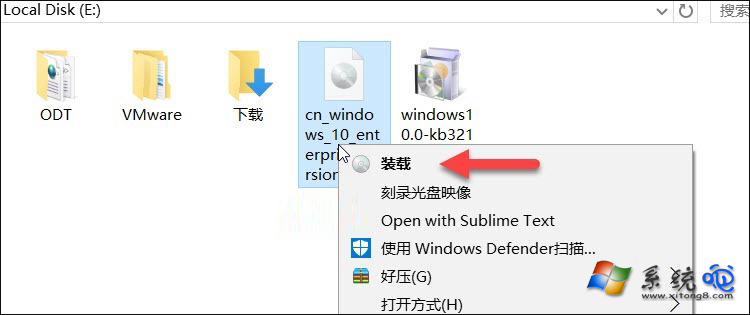
  1. 預設 .iso 關聯檔案總管:雙擊 .iso 檔案 即自動掛載,或右鍵 → 掛載。
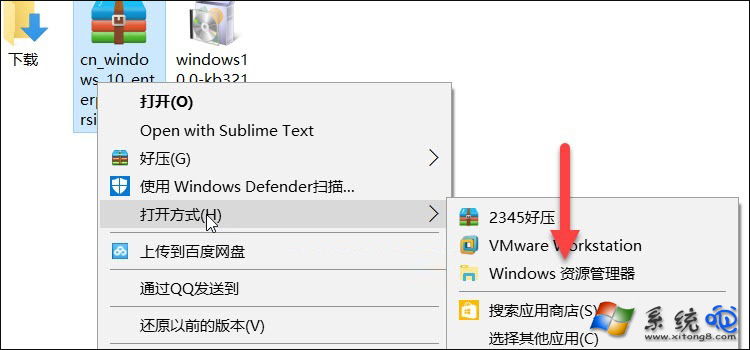
  2. 若被第三方軟體關聯:右鍵 → 開啟方式 → Windows 檔案總管。
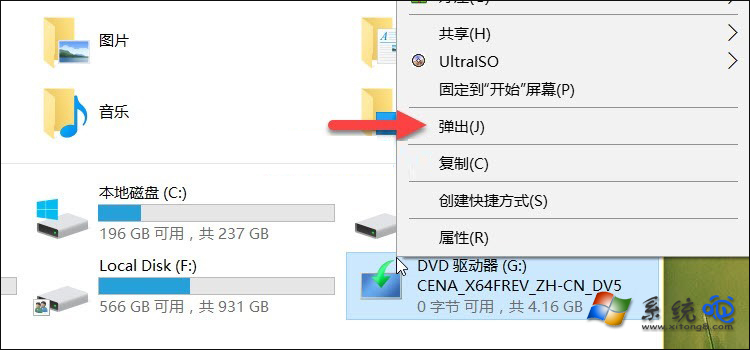
  3. 3. 掛載後會在「此電腦」建立虛擬光碟機(分配磁碟代號),可直接瀏覽內容。 4. 使用完畢:在「此電腦」對虛擬光碟機右鍵 → 彈出 卸載。

方法二:PowerShell 指令(適合腳本/Server Core)

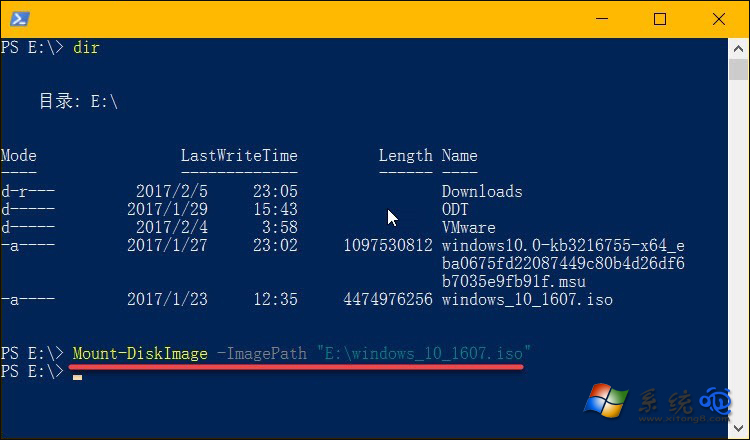
  • 掛載:Mount-DiskImage -ImagePath "E:\windows_10_1607.iso"
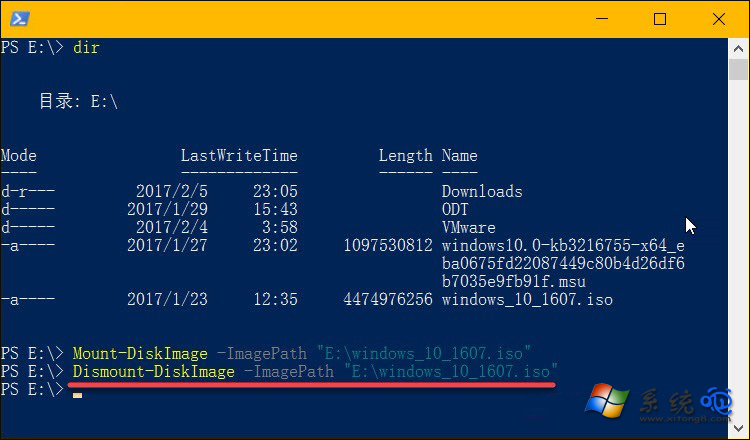
  • 彈出:Dismount-DiskImage -ImagePath "E:\windows_10_1607.iso"
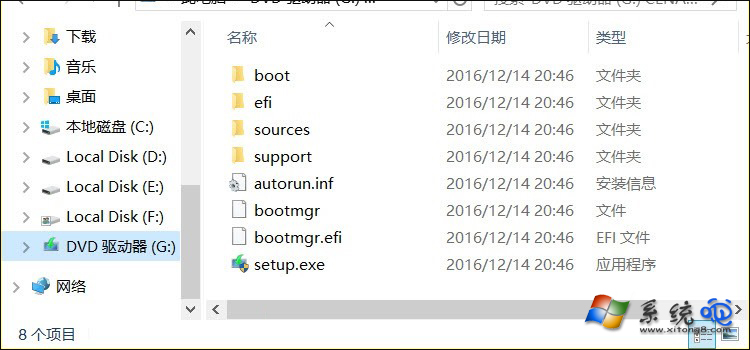
  • 請將路徑替換為實際 ISO 檔案完整路徑。
右鍵掛載選單 開啟方式選單 虛擬光碟機內容 彈出虛擬光碟機 PowerShell Mount-DiskImage PowerShell Dismount-DiskImage

注意:同樣適用於 .img 映像檔。若需將 .iso 關聯改回檔案總管:設定 → 應用程式 → 預設應用程式 → 選擇依檔案類型設定預設值 → .iso → Windows 檔案總管。

Copyright © Windows教程網 All Rights Reserved