Windows XP Windows 7 Windows 2003 Windows Vista Windows 綜合教學 Linux 系統教學
Windows 10 Windows 8 Windows 2008 Windows NT Windows Server 電腦軟體教學

Win10 防火牆無法開啟、錯誤 0x80070422?啟用服務即可修復

編輯:Windows 10 系統介紹

許多 Windows 10 使用者在嘗試開啟 Windows 防火牆時,會跳出錯誤代碼 0x80070422,導致防火牆無法啟用。這通常是因為「Windows Firewall」核心服務未啟動或啟動類型設為「手動/停用」所致。透過服務管理工具將其設為自動並啟動,即可解決。

修復步驟

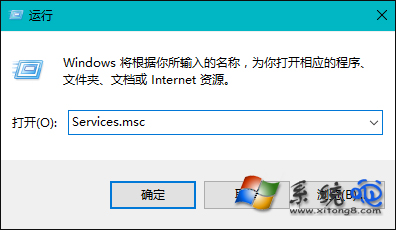
  1. 右鍵「開始」按鈕 → 選擇「執行」(或按 Win + R),輸入 services.msc 按 Enter。
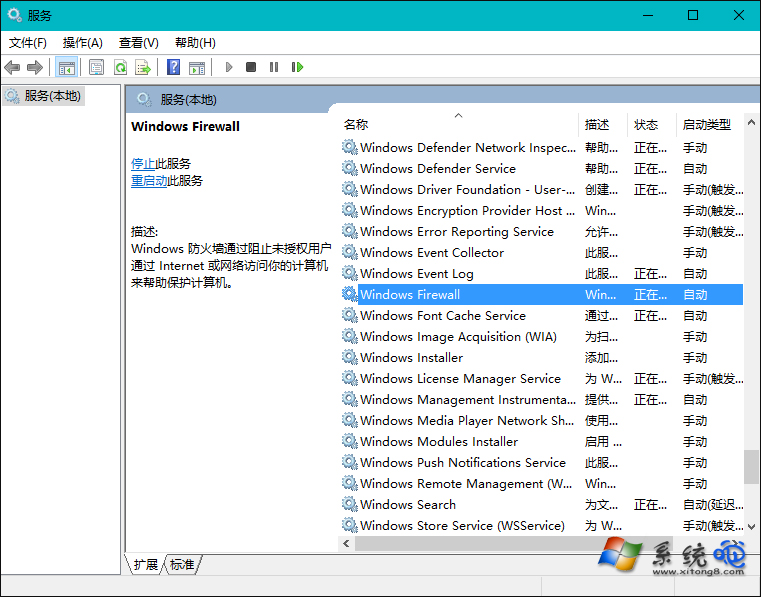
  2. 在服務清單中找到 Windows Firewall(Windows 防火牆)。
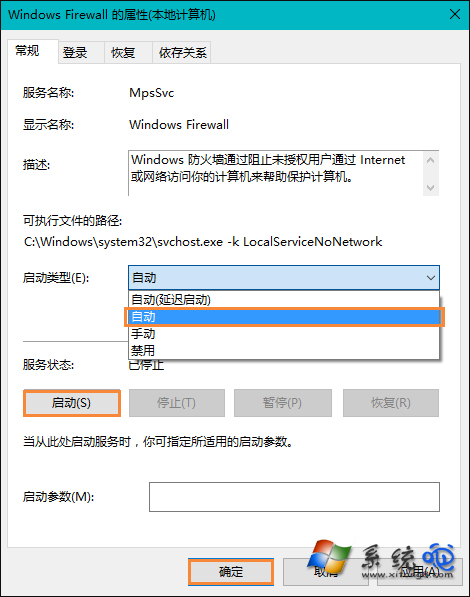
  3. 雙擊開啟屬性,將「啟動類型」改為 自動,點擊「套用」。
  4. 再點擊「啟動」按鈕啟動服務,確認狀態顯示為「執行中」。

開啟服務管理工具

找到 Windows Firewall 服務

設定啟動類型為自動

進階檢查

若上述方法無效,請同時確認以下相依服務皆為「自動」且「執行中」:

  • Base Filtering Engine (BFE)
  • Windows Firewall Authorization Driver
  • Remote Procedure Call (RPC)

此外,若使用第三方防毒軟體(如 360、卡巴斯基等),其內建防火牆可能會接管系統防火牆功能,導致 Windows 防火牆被停用。建議在第三方軟體設定中確認,或暫時解除安裝測試。

Copyright © Windows教程網 All Rights Reserved