Windows XP Windows 7 Windows 2003 Windows Vista Windows 綜合教學 Linux 系統教學
Windows 10 Windows 8 Windows 2008 Windows NT Windows Server 電腦軟體教學

Win10 檔案總管隱藏搜尋歷史記錄:群組原則關閉「最近搜尋項目顯示」保護隱私

編輯:Windows 10 系統介紹

Windows 10 檔案總管搜尋框會自動保存並顯示歷史搜尋關鍵字,若共用電腦或重視隱私,可透過群組原則(gpedit.msc)關閉此功能。注意:啟用後同時停用搜尋建議(即時提示)。

操作步驟

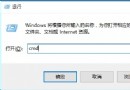
  1. 按 Win + R → 輸入 gpedit.msc → Enter。
  2. 依序展開:
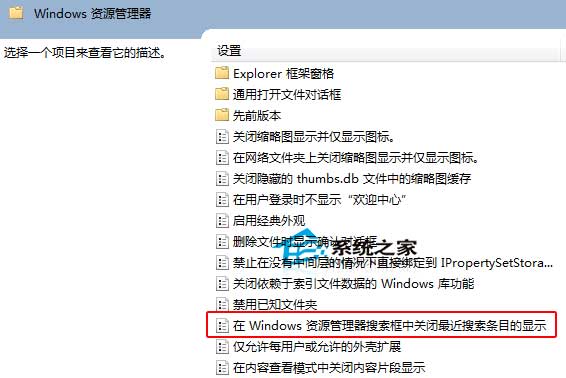
    使用者設定 → 系統管理範本 → Windows 元件 → 檔案總管
  3. 右側雙擊「在檔案總管搜尋方塊中關閉最近搜尋項目的顯示」。
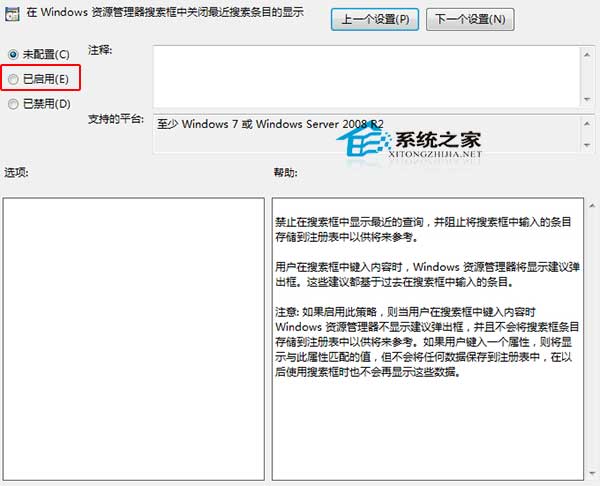
  4. 選擇「已啟用」 → 「確定」。
  5. 重新開啟檔案總管驗證搜尋框無歷史下拉清單。

執行 gpedit.msc

群組原則路徑

啟用關閉最近搜尋

替代方案(家用版無 gpedit.msc)

登錄編輯器:
HKEY_CURRENT_USER\Software\Policies\Microsoft\Windows\Explorer
新建 DWORD 值 DisableSearchBoxSuggestions = 1,重開機生效。

相關技巧

  • 清除搜尋歷史:搜尋框右鍵 → 「清除搜尋歷程」(若可用)。
  • Win8/8.1 同樣適用群組原則路徑。
  • 不影響 Cortana/Windows Search 索引功能,僅隱藏 UI 顯示。
Copyright © Windows教程網 All Rights Reserved