記事本是 Windows 最基礎也最重要的文字編輯工具,不僅用於記錄筆記,更是修改 hosts、編輯登錄檔、撰寫批次檔的利器。Win10 提供多種開啟管道,掌握最適合習慣的一種即可。
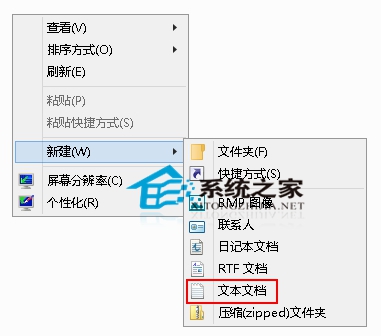
方法一:右鍵新建文字文件(最直覺)
- 桌面或資料夾空白處右鍵 → 「新增」→ 「文字文件」。
- 輸入檔名 → Enter → 雙擊開啟編輯。
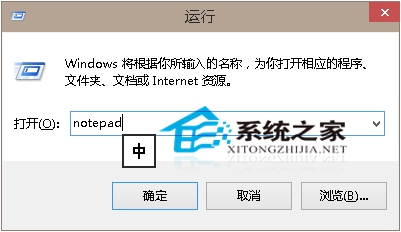
方法二:執行指令(極速)
- Win + R → 輸入
notepad 或 notepad.exe → Enter。
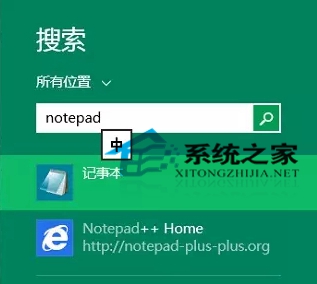
方法三:Windows Search 搜尋
- Win + S 或 Win + Q → 輸入「記事本」或「notepad」→ Enter。
方法四:命令列 / PowerShell
- 開啟 CMD 或 PowerShell → 輸入
notepad → Enter。
- 進階:
notepad C:\path\to\file.txt 直接開啟指定檔案。
方法五:釘選到工作列 / 開始畫面
- 開始選單 → 「所有應用」→ 「Windows 附屬應用程式」→ 「記事本」右鍵 → 「釘選到工作列」或「釘選到開始畫面」。
- 之後單擊圖示即可秒開。
記事本進階用途
- 修改 hosts: 以系統管理員身分開啟 →
C:\Windows\System32\drivers\etc\hosts
- 編輯 .reg 登錄檔: 另存為 .reg 雙擊匯入登錄。
- 撰寫 .bat 批次檔: 自動化重複指令。
- 移除格式純文字貼上: 複製網頁文字 → 記事本 → 再複製 → 貼上目標處,去除字型/顏色/超連結。