Windows XP Windows 7 Windows 2003 Windows Vista Windows 綜合教學 Linux 系統教學
Windows 10 Windows 8 Windows 2008 Windows NT Windows Server 電腦軟體教學

Win10 關閉作業中心 (通知中心) 登錄表法:新增 DisableNotificationCenter = 1 徹底停用

編輯:Windows 10 系統介紹

Windows 10 作業中心 (通知中心) 圖示常駐工作列最右側,若不需要通知彈出、快速動作按鈕,可透過登錄表徹底停用,介面更簡潔。
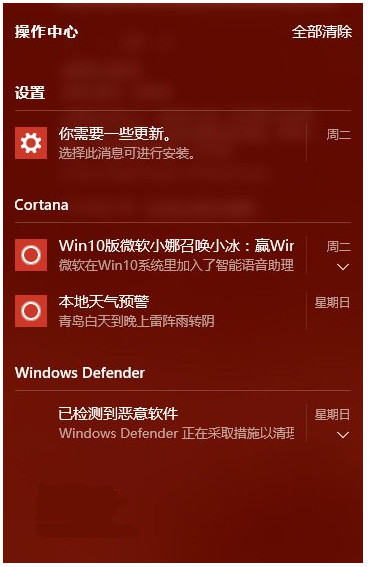
作業中心圖示

登錄表停用步驟

  1. Win+R → regedit 開啟登錄表編輯器。
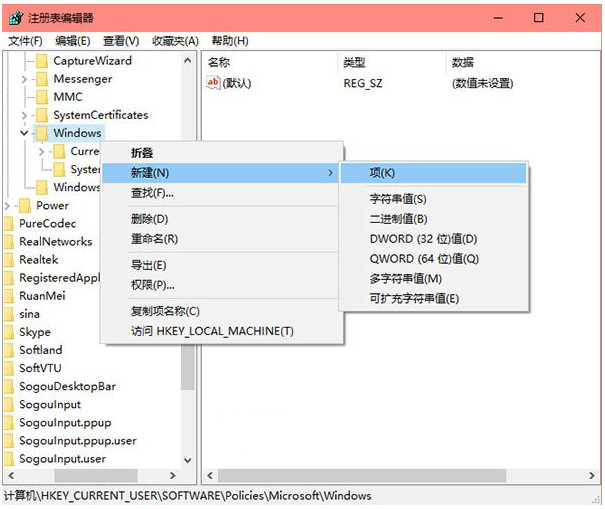
  2. 定位至:
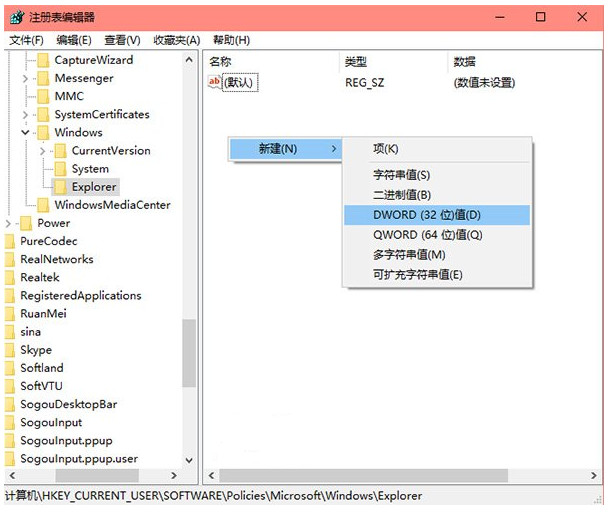
    HKEY_CURRENT_USER\SOFTWARE\Policies\Microsoft\Windows\Explorer
    (若 Explorer 項目不存在,在 Windows 右鍵新增項目命名 Explorer)。
  3. 在 Explorer 右側空白處右鍵 → 「新增」→「DWORD (32 位元) 值」 → 命名 DisableNotificationCenter。
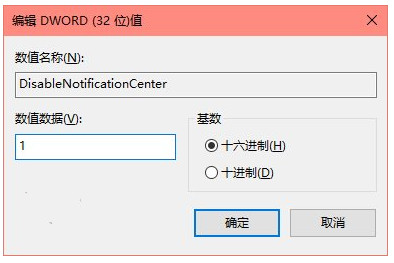
  4. 雙擊修改數值資料為 1 → 確定。
  5. 登出重新登入或重啟 `explorer.exe` (工作管理器→重新啟動) 即生效。

登錄表 Explorer 路徑

新增 DisableNotificationCenter

設定數值為 1

效果

  • 工作列最右側通知圖示消失。
  • Win+A 快速鍵失效。
  • 通知彈出 (Toast) 仍可能顯示 (屬獨立機制),若需全關通知:設定→系統→通知與動作→關閉「取得來自應用程式和其他傳送者的通知」。

還原啟用

刪除 DisableNotificationCenter 值,或將數值改為 0,重啟 Explorer 即恢復。

群組原則替代 (專業版/企業版)

gpedit.msc → 使用者設定→管理範本→開始功能表和工作列→「移除通知區域圖示」→ 已啟用 → 選「全部隱藏」或指定隱藏通知中心圖示。

Copyright © Windows教程網 All Rights Reserved