Win 10 關閉鎖定畫面兩種方法:
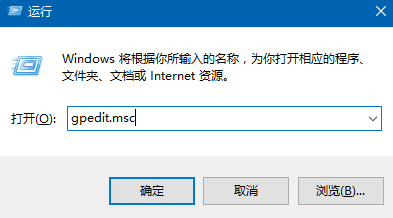
gpedit.msc
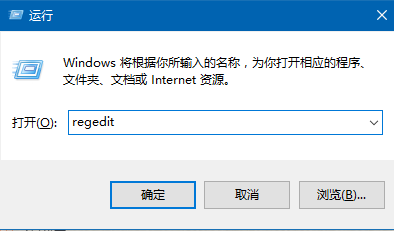
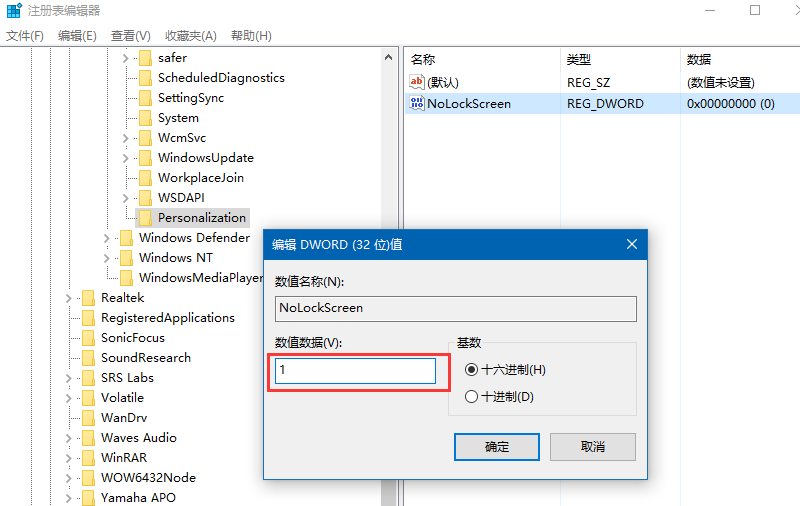
regedit
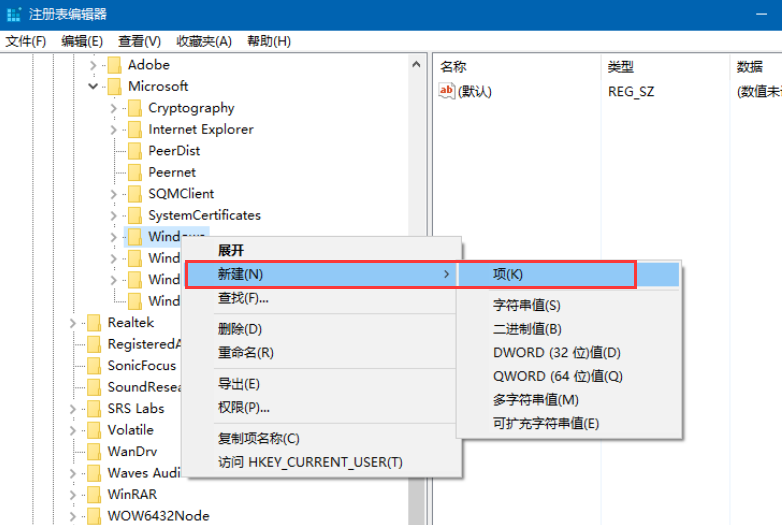
HKEY_LOCAL_MACHINE\SOFTWARE\Policies\Microsoft\Windows
Personalization
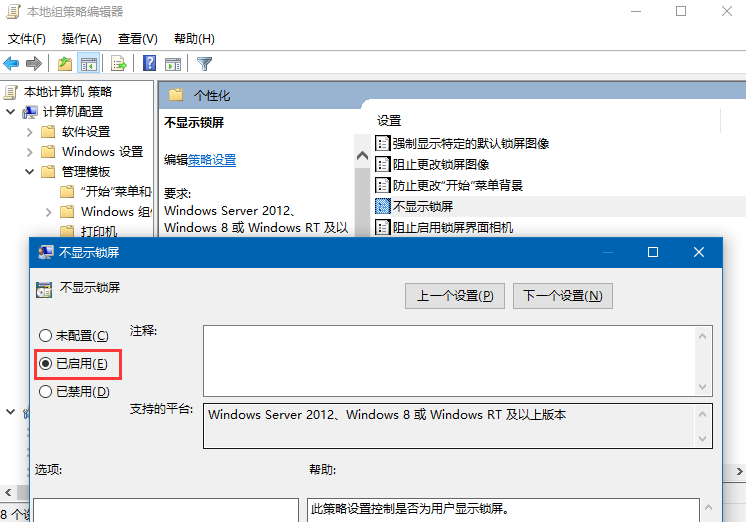
NoLockScreen
1
修改生效後開機/喚醒直接進入登入畫面,省去鎖定畫面滑動步驟。
解決 Win 10 內建管理員帳號無法啟動應用程式問題
Win10 如何啟用鍵盤輔助按鍵 (Mouse Keys)?滑鼠故障時用數字鍵盤控制滑鼠游標
Win10 週年更新「快速助手」遠端協助完整使用教學:邀請協助/請求控制、邀請碼 10 分鐘效期、Microsoft 帳號登入
Win10 設定 Windows Defender 排除特定程序掃描,避免誤殺與效能影響
Win10 飛行模式關不掉?乾淨啟動排除第三方服務衝突完整教學
Windows 10 安裝 Office 365 / 2016 無回應解決:結束程序重裝、我的 Office 帳戶頁操作
Windows 10 徹底關閉「快速存取」功能:登錄表修改教學
Win10 新增 PIN 碼登入的完整步驟教學