Windows XP Windows 7 Windows 2003 Windows Vista Windows 綜合教學 Linux 系統教學
Windows 10 Windows 8 Windows 2008 Windows NT Windows Server 電腦軟體教學

WinXP 出現 ActionScript 錯誤怎麼解決?完整修復教學

編輯:XP 系統應用技巧

在使用 Windows XP 系統瀏覽網頁、玩遊戲或觀看影片時,經常會彈出 ActionScript 錯誤視窗,畫面顯示一長串字符,讓人不知所措。這類錯誤通常是由 Flash Player 外掛程式損壞或設定不當所引起。本文提供詳細的排除步驟,幫助您快速解決問題。

錯誤成因

主要原因在於 Flash Player 外掛程式檔案遺失、版本過舊,或是安全性設定阻擋了腳本執行。
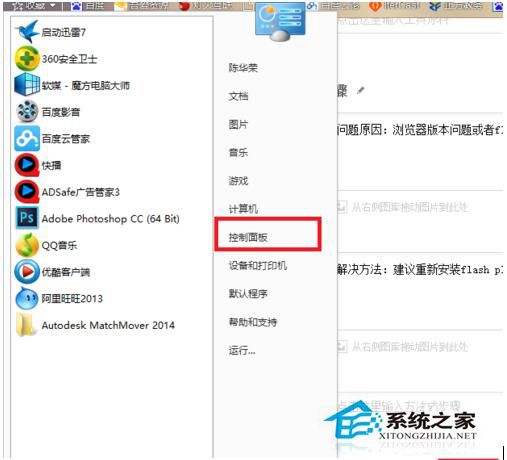
解決方法

步驟 1:移除舊版 Flash Player

  1. 開啟「控制台」→ 切換至「小圖示」檢視 → 點選「程式和功能」。
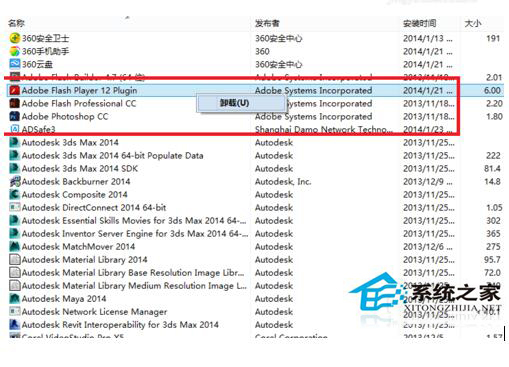
  2. 在程式清單中找到 Adobe Flash Player,右鍵選擇「解除安裝」。
  3. 依照畫面指示完成移除程序。


步驟 2:下載並安裝最新版 Flash Player

  1. 前往 Adobe 官網下載最新版 Flash Player 安裝程式。
  2. 執行安裝檔,依預設選項安裝即可。
  3. 安裝完成後,系統會提示重新啟動電腦,請照做。

步驟 3:將信任網站加入 Flash 允許清單(可選)

若問題持續,可在 Flash Player 設定管理員中,將常用網站網址設為「允許」,避免腳本被阻擋。

總結

重新安裝 Flash Player 通常能徹底解決 ActionScript 錯誤。若仍無效,請檢查瀏覽器是否啟用了腳本攔截擴充功能,或嘗試使用其他瀏覽器測試。

Copyright © Windows教程網 All Rights Reserved