Windows XP Windows 7 Windows 2003 Windows Vista Windows 綜合教學 Linux 系統教學
Windows 10 Windows 8 Windows 2008 Windows NT Windows Server 電腦軟體教學
您现在的位置: Windows教程網 >> Windows教程 >  >> Windows 綜合教學 >> 關於 Windows

Win10 藍畫面太簡略?修改登錄啟用詳細錯誤資訊顯示

編輯:關於 Windows

Windows 10 的藍畫面(BSOD)換上了現代化的悲傷表情符號與極簡錯誤碼,雖然美觀卻讓想深入排錯的使用者抓不到頭緒。相較於 Windows 7/XP 時代直接顯示驅動程式檔名、記憶體位址等詳細文字,Win10 預設隱藏了大部分除錯資訊。幸好,透過修改登錄即可找回傳統詳細模式。

操作步驟

  1. 按 Win+R 輸入 regedit 開啟登錄編輯器。
  2. 瀏覽至路徑:
    HKEY_LOCAL_MACHINE\System\CurrentControlSet\Control\CrashControl
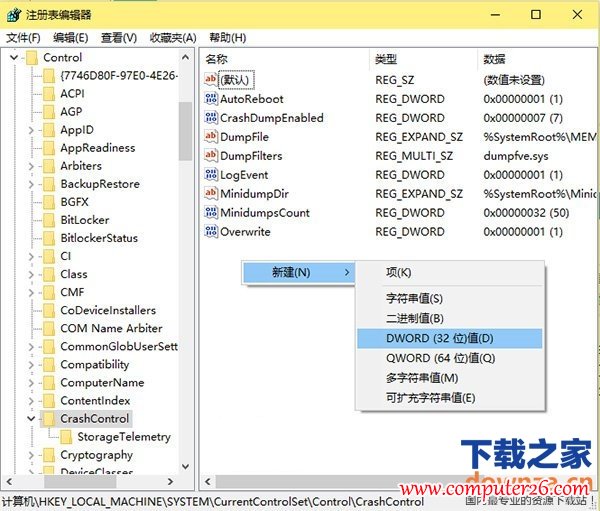
  3. 在右側空白處右鍵 → 「新增」→ 「DWORD (32 位元) 值」,命名為 DisplayParameters。
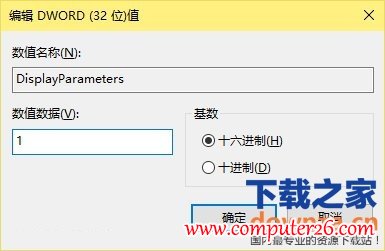
  4. 雙擊該值,將「數值資料」改為 1,按確定。
  5. 重新開機生效。

新增 DisplayParameters DWORD 值

將數值資料設為 1

效果說明

下次發生藍畫面時,畫面將顯示傳統風格的詳細資訊:停止代碼參數、故障驅動程式模組名稱、記憶體位址、堆疊追蹤等,極大提升除錯效率。當然,最好的情況是這項設定永遠用不上——祝大家系統穩定,永遠不見藍畫面!

Copyright © Windows教程網 All Rights Reserved