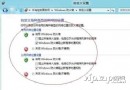
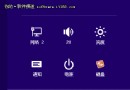
Windows 8 移除了「網路和共用中心」中的「管理無線網路」圖形介面,僅能在工作列網路圖示看到目前可偵測的熱點。若要檢視、刪除或修改已連線過的無線網路設定檔(包含密碼),必須透過命令提示字元搭配 netsh wlan 指令來完成。
| 功能 | 指令 | 說明 |
|---|---|---|
| 顯示所有無線設定檔 | netsh wlan show profiles |
列出電腦上儲存的所有無線網路設定檔名稱 |
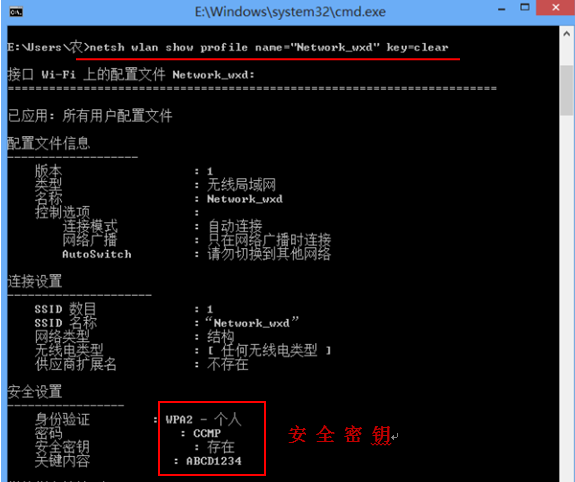
| 顯示指定設定檔詳細資訊(含密碼) | netsh wlan show profile name="設定檔名稱" key=clear |
在「金鑰內容」欄位可看到明文密碼 |
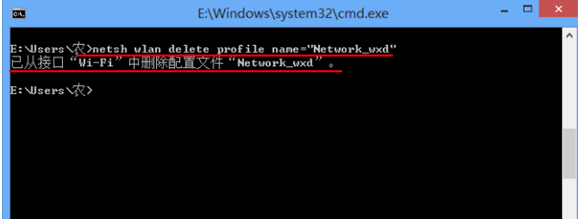
| 刪除指定設定檔 | netsh wlan delete profile name="設定檔名稱" |
移除不再需要的舊設定檔 |
| 停用自動連線 | netsh wlan set profileparameter name="設定檔名稱" connectionmode=manual |
將該網路設為手動連線,避免自動搶連 |
cmd 進入命令提示字元。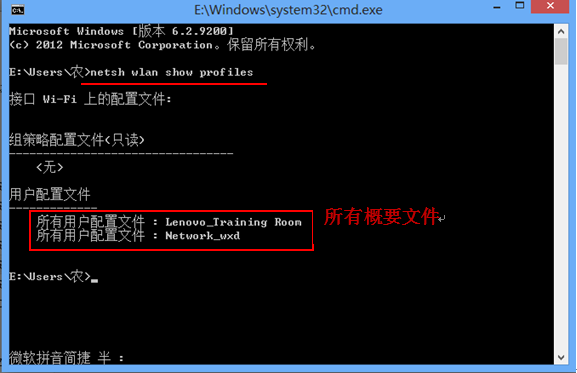
netsh wlan export profile 及 netsh wlan add profile 指令。