在 Windows 8 安裝 XAMPP 時,Apache 常因系統預設佔用 80 埠(HTTP Service)而無法啟動。本文提供徹底解決方案:停用並禁用 HTTP 服務、修改登錄啟動類型、重開機驗證,確保 80 埠釋放給 Apache 使用。
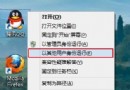
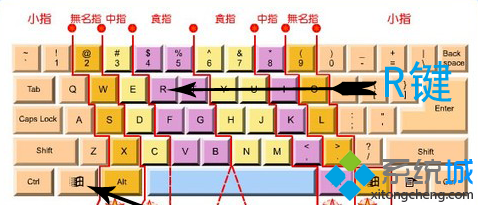
netstat -ano | findstr :80 發現 PID 4 (System) 佔用 0.0.0.0:80。按 Win+X → 選擇「命令提示字元 (系統管理員)」或「Windows PowerShell (系統管理員)」。
net stop http成功訊息:HTTP Service 服務已成功停止。
netstat -ano | findstr 0.0.0.0:80若無輸出結果,表示 80 埠已無程序佔用。
sc config http start=disabled成功訊息:[SC] ChangeServiceConfig 成功
regedit 開啟登錄編輯器。HKEY_LOCAL_MACHINE\SYSTEM\CurrentControlSet\services\HTTP重啟電腦,System 進程將不再佔用 80 埠,XAMPP Apache 即可正常啟動。
sc config 有時在某些環境下不生效,直接修改 Start=0(SERVICE_DISABLED)為根治。httpd.conf 中的 Listen 80),但建議優先釋放 80 埠以保持標準。https://localhost 或 https://127.0.0.1,出現 XAMPP 歡迎頁面即成功。net stop http
netstat -ano | findstr 0.0.0.0:80
sc config http start=disabled
reg add "HKLM\SYSTEM\CurrentControlSet\services\HTTP" /v Start /t REG_DWORD /d 0 /f
shutdown /r /t 0最後一行 shutdown /r /t 0 為立即重開機,可選擇手動重啟。
Windows 8 內建 HTTP Service 佔用 80 埠是 XAMPP Apache 無法啟動的主因。透過「停用服務 → 設為禁用 → 登錄強制停用 → 重開機」四步驟,可徹底釋放 80 埠,讓 Apache 順利運行。操作簡單、效果永久,建議所有 Win8 上架設 XAMPP 的開發者執行此設定。