Windows XP Windows 7 Windows 2003 Windows Vista Windows 綜合教學 Linux 系統教學
Windows 10 Windows 8 Windows 2008 Windows NT Windows Server 電腦軟體教學

Windows 8/8.1 關閉 Modern 鎖定畫面,直接進入登入介面

編輯:Win8 系統應用技巧

前言

Windows 8/8.1 預設開機或喚醒後顯示 Modern 鎖定畫面 (時間、網路狀態、電池等),需向上滑動或按鍵才能進入登入畫面。若偏好直接進入登入介面,可透過群組原則或登錄停用鎖定畫面。

Modern 鎖定畫面

方法:使用本機群組原則編輯器 (適用專業版/企業版)

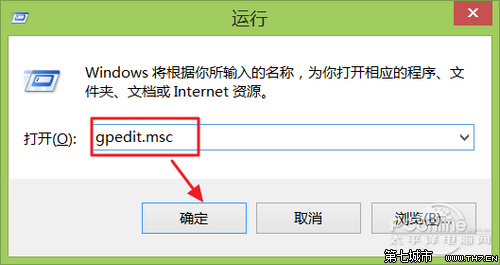
  1. 按 Win + R → 輸入 gpedit.msc 開啟「本機群組原則編輯器」。
  2. 開啟 gpedit.msc
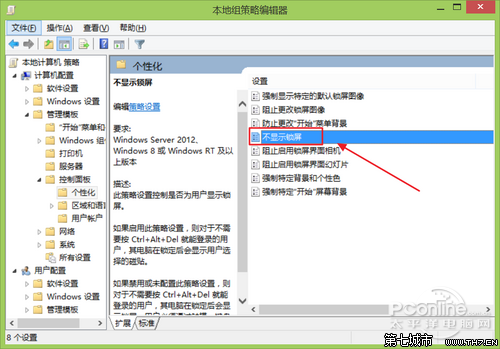
  3. 導覽至:電腦設定 → 系統管理範本 → 控制台 → 個人化。
  4. 雙擊右側「不顯示鎖定畫面」。
  5. 不顯示鎖定畫面設定
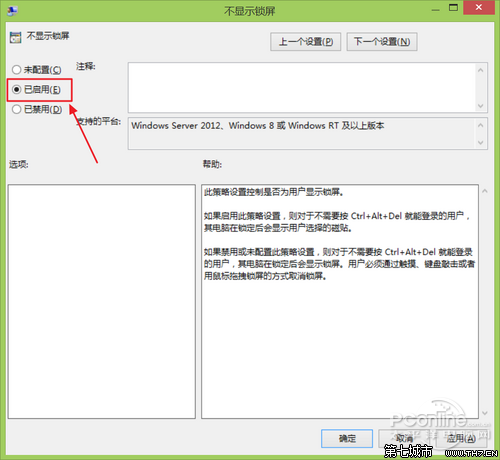
  6. 選擇「已啟用」→「確定」。
  7. 設為已啟用
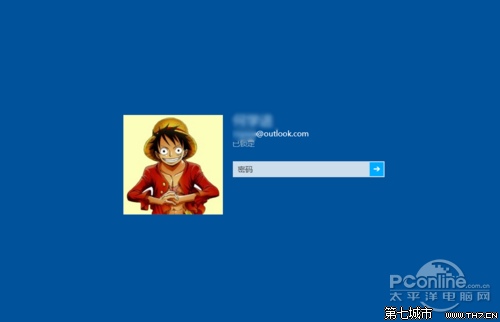
  8. 按 Win + L 鎖定電腦測試,應直接進入登入畫面,不再顯示鎖定畫面壁紙。
  9. 直接進入登入畫面

恢復鎖定畫面

將「不顯示鎖定畫面」設為「已停用」或「未設定」即可恢復預設行為。

注意

家用版 (Core) 無群組原則編輯器,可改用登錄法:在 HKEY_LOCAL_MACHINE\SOFTWARE\Policies\Microsoft\Windows\Personalization 建立 DWORD 值 NoLockScreen = 1。

Copyright © Windows教程網 All Rights Reserved