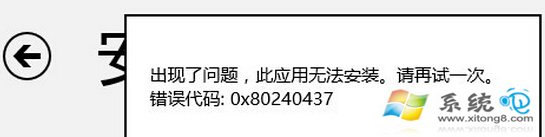
Win8 應用商店下載應用時彈出「此應用無法安裝,錯誤代碼:0x80240437」,通常是 Windows Update 快取損壞或服務異常導致。本文提供標準修復流程:停止服務、重命名快取資料夾、重啟服務。
按 Win + R 輸入 services.msc → 找到「Windows Update」 → 右鍵選擇「停止」。
開啟「這台電腦」 → 地址列輸入 C:\Windows\SoftwareDistribution → 將資料夾重命名為 SoftwareDistributionOld(需管理員權限)。
回到 services.msc,右鍵「Windows Update」選擇「啟動」。
SoftwareDistribution 資料夾儲存 Windows Update 下載的暫存檔與更新快取。重命名該資料夾等於強制系統重建乾淨的快取目錄,解決因快取損壞導致的 0x80240437 錯誤。舊資料夾可於確認問題解決後手動刪除以釋放空間。
若上述方法無效,可嘗試:
sfc /scannow 修復系統檔案wsreset.exe 重置應用商店快取修復完成後重新開啟應用商店,通常即可正常下載安裝應用程式。