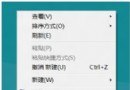
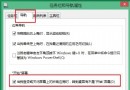
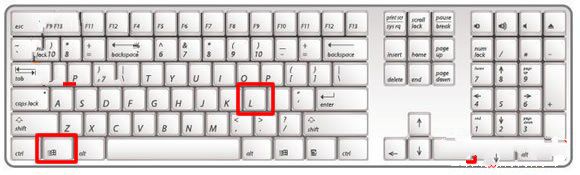
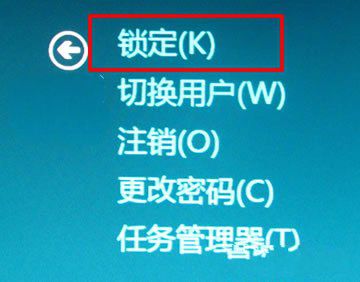
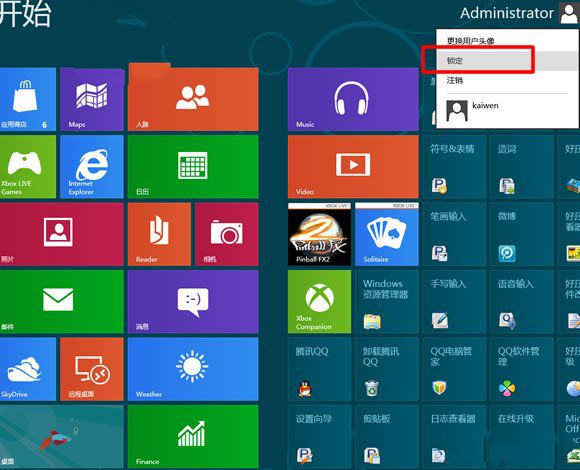
Windows 8 引入類手機操作的鎖定畫面:精美背景圖片、時間日期、通知狀態。本文整理鎖定、解鎖、快速鍵三大操作,助您輕鬆玩轉鎖屏。
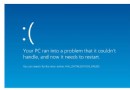
Windows 8 藍畫面重開機排除指南:常見原因、內建自癒、藍屏分析工具 BlueScreenView 完整教學
Win8 新增虛擬網卡啟用託管網路:裝置管理員手動新增 Microsoft 虛擬介面卡
Windows 8 推進至 Build 8063 仍屬 M3 階段 BUILD 大會將首度公開亮相
Windows 8 連接無線網路兩大方案:手動設定與快速連線完整教學
Windows 8 查看 Windows Update 更新歷史記錄的完整圖文教學
Win 8 更新 Firefox 後 IE 無法使用 重置 Winsock 目錄修復