Windows XP Windows 7 Windows 2003 Windows Vista Windows 綜合教學 Linux 系統教學
Windows 10 Windows 8 Windows 2008 Windows NT Windows Server 電腦軟體教學

Win7 開啟軟體提示錯誤 38 (CorelDRAW X7)?修復安裝與替換 PSIKey 檔案雙重解法

編輯:Win7 系統應用技巧

Windows 7 執行 CorelDRAW X7 提示「錯誤 38」,通常是授權服務 (Protexis Licensing) 檔案損壞或遺失。透過「程式和功能」修復安裝,或手動替換 PSIKey-33001.dll 為 PsiClient.dll 即可解決。

方法一:修復安裝 (最簡單)

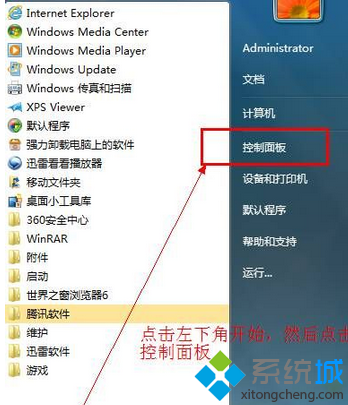
  1. 控制台 → 「程式和功能」 (大圖示檢視) → 找到 CorelDRAW Graphics Suite X7 → 右鍵 → 「修復」/「變更」→ 選「修復」→ 下一步完成。
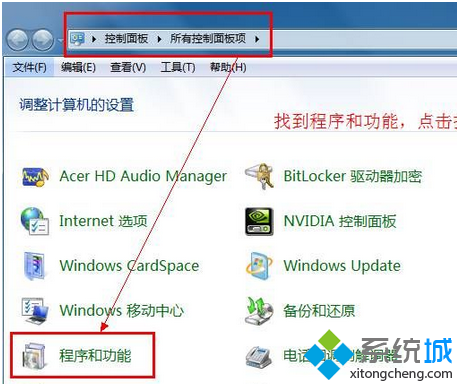
  2. 修復完成後測試,若重開機後錯誤復發,改用方法二。

方法二:手動替換授權核心檔案

  1. 開啟檔案總管依序進入:
    C:\Program Files\Common Files\Protexis\License Service
  2. 複製 PSIKey-33001.dll 到桌面,重新命名為 PsiClient.dll。
  3. 將 PsiClient.dll 複製到 CorelDRAW 程式目錄:
    C:\Program Files\Corel\CorelDRAW Graphics Suite X7\Draw
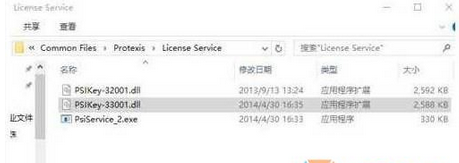
    選擇「取代目的地檔案」。
  4. 重新啟動 CorelDRAW,錯誤 38 應消失。

根因分析

Protexis 授權服務更新或系統清理導致 PsiClient.dll 版本不符/遺失,CorelDRAW 啟動時檢查授權失敗報錯 38。手動替換為相容版本即可繞過檢查。

注意事項

  • 此法僅解決啟動報錯,不代表授權合法。商業使用請購買正版序號。
  • CorelDRAW 2018/2019/2020 同理,路徑中版本號碼對應修改。
  • 若修復/替換均無效,嘗試完全解除安裝 → 清理註冊表 (CCleaner) → 重新安裝正版。
Copyright © Windows教程網 All Rights Reserved