Windows 7 點擊瀏覽器圖示(或任意捷徑)導致資源管理員卡死、畫面凍結、需強制重啟,多因 .lnk 捷徑檔案關聯在登錄中被惡意軟體/優化工具污染,導致 openwithlist、openwithprogids 以外的多餘鍵值干擾 Shell 執行流程。本文提供精準登錄清理步驟,快速恢復正常。
正常 .lnk 關聯登錄路徑:
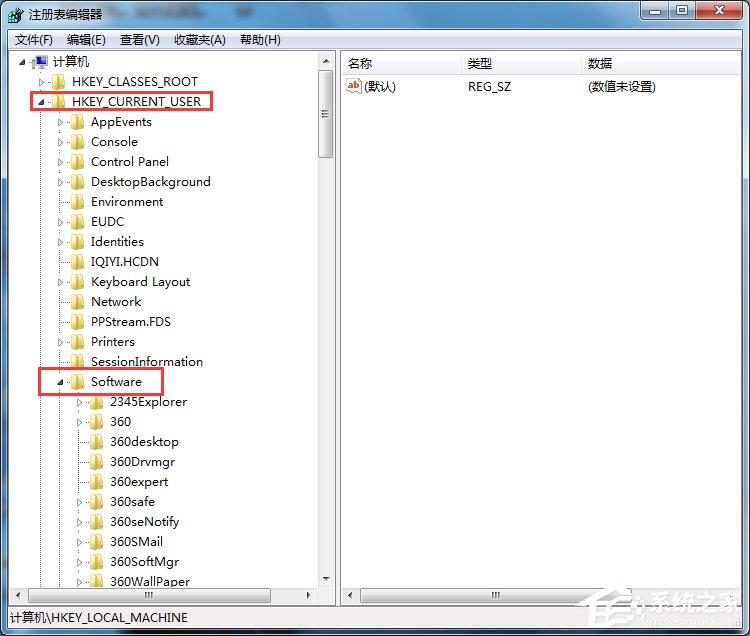
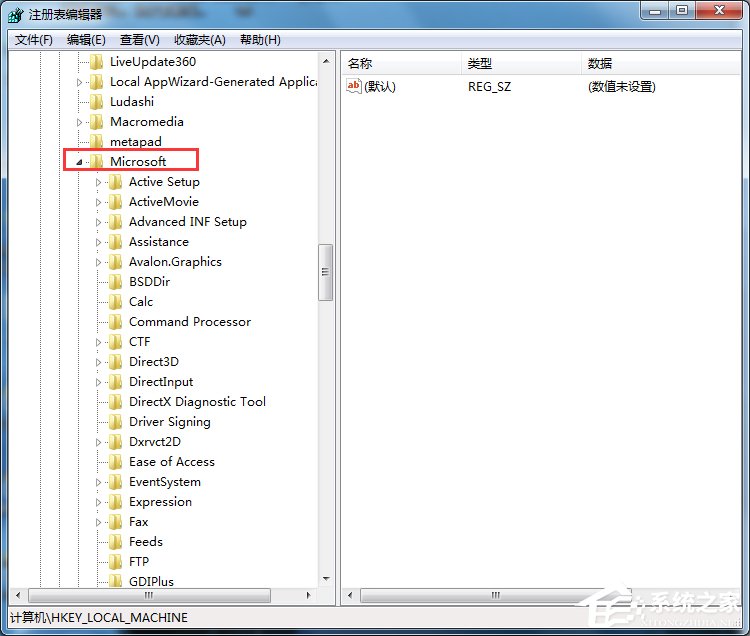
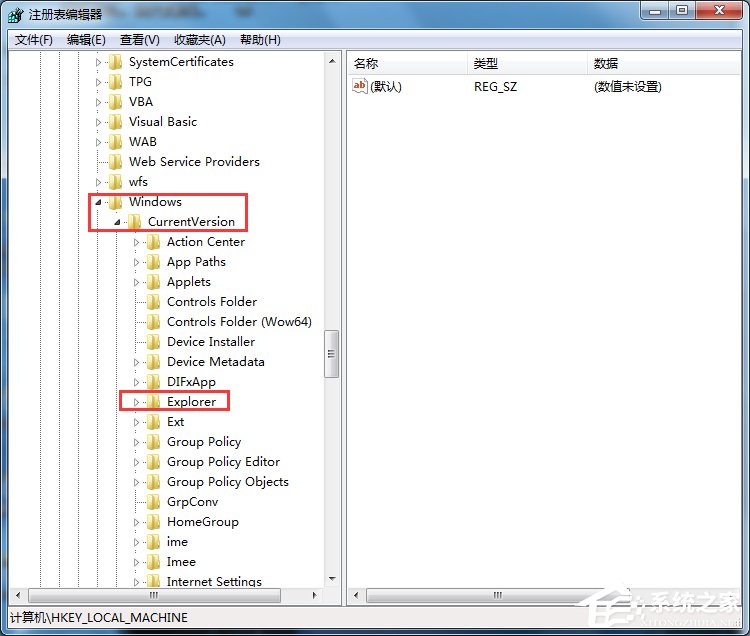
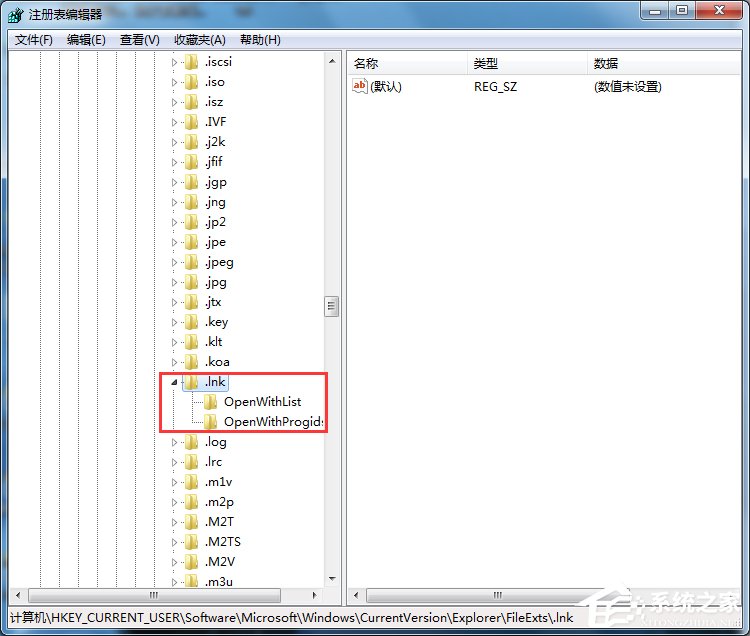
HKEY_CURRENT_USER\Software\Microsoft\Windows\CurrentVersion\Explorer\FileExts\.lnk
健康狀態僅包含兩個子鍵:
OpenWithList(記錄最近使用開啟程式)OpenWithProgids(記錄 ProgID 關聯)惡意軟體/優化工具常在此建立 UserChoice、OpenWithList\a、OpenWithList\b 等多餘值,導致 Shell 執行路徑解析進入死迴圈。
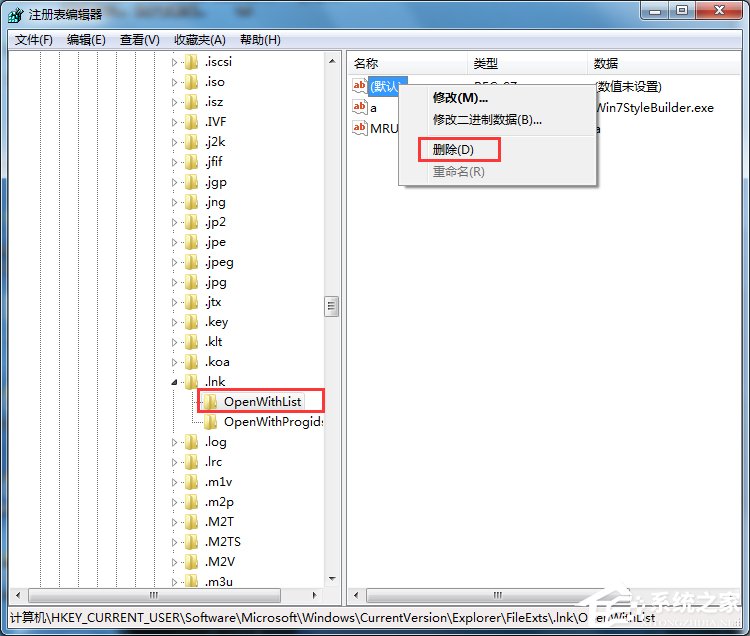
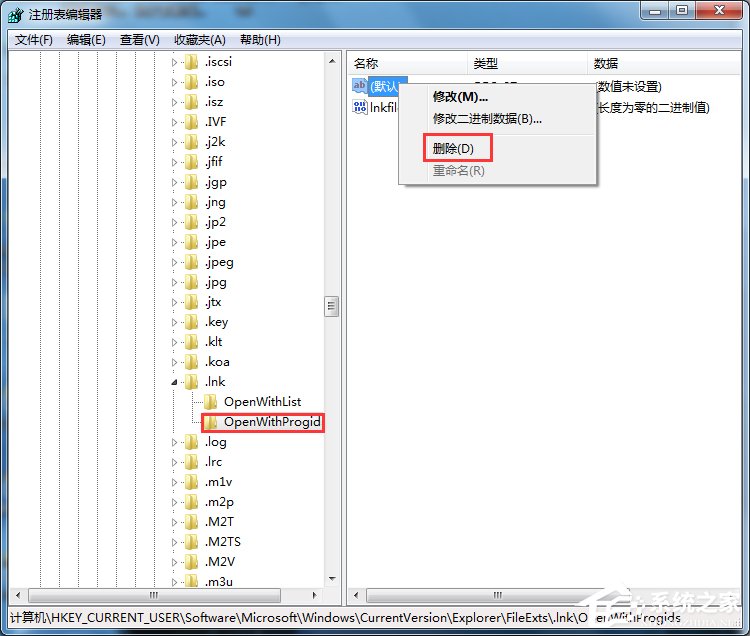
regedit → 確定。HKEY_CURRENT_USER\Software\Microsoft\Windows\CurrentVersion\Explorer\FileExts\.lnk.lnk 下,僅保留 OpenWithList 與 OpenWithProgids 兩個資料夾,刪除其他所有子鍵/值(如 UserChoice、多餘的字母鍵)。OpenWithList,僅保留 (預設) 值,刪除 a、b、MRUList 等項目。OpenWithProgids,同樣僅保留 (預設) 值,刪除其他項目。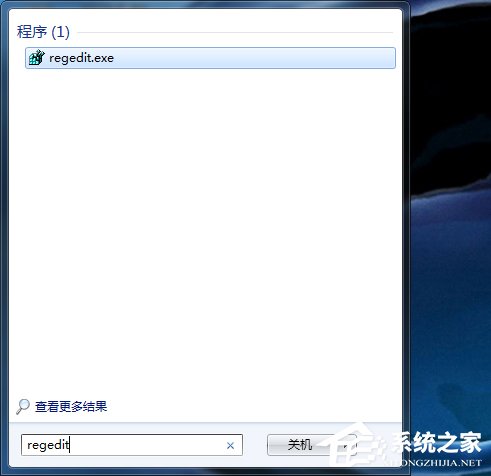
以系統管理員身分執行 CMD:
reg delete "HKCU\Software\Microsoft\Windows\CurrentVersion\Explorer\FileExts\.lnk\UserChoice" /f
reg delete "HKCU\Software\Microsoft\Windows\CurrentVersion\Explorer\FileExts\.lnk\OpenWithList" /va /f
reg add "HKCU\Software\Microsoft\Windows\CurrentVersion\Explorer\FileExts\.lnk\OpenWithList" /ve /d "" /f
reg delete "HKCU\Software\Microsoft\Windows\CurrentVersion\Explorer\FileExts\.lnk\OpenWithProgids" /va /f
reg add "HKCU\Software\Microsoft\Windows\CurrentVersion\Explorer\FileExts\.lnk\OpenWithProgids" /ve /d "" /f
執行後重啟 explorer.exe:taskkill /f /im explorer.exe && start explorer.exe
.lnk 登錄分支備份,異常時快速匯入還原。路徑模式相同:HKCU\...\FileExts\.exe、.bat、.cmd,清理方式同樣「僅保留 OpenWithList、OpenWithProgids 兩個標準子鍵」。