Win7 檔案總管「平鋪」檢視下磁碟機不顯示剩餘容量。原因是註冊表 HKEY_CLASSES_ROOT\Drive 缺少 TileInfo 字串值。建立 .reg 檔匯入即可修復:TileInfo="prop:*System.PercentFull;System.Computer.DecoratedFreeSpace;System.Volume.FileSystem"。
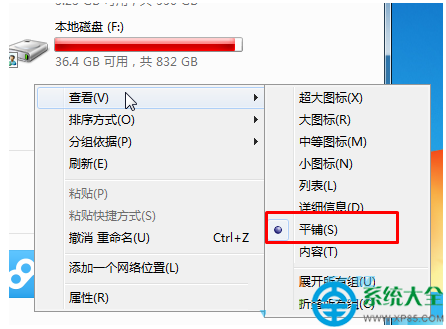
fix_drive_tile.reg (編碼 ANSI/UTF-16 LE):Windows Registry Editor Version 5.00[HKEY_CLASSES_ROOT\Drive]"TileInfo"="prop:*System.PercentFull;System.Computer.DecoratedFreeSpace;System.Volume.FileSystem"fix_drive_tile.reg ► 「是」匯入註冊表。System.PercentFull:顯示使用率百分比進度條。System.Computer.DecoratedFreeSpace:顯示格式化後的剩餘空間 (如 123 GB 可用)。System.Volume.FileSystem:顯示檔案系統類型 (NTFS/FAT32/exFAT)。若非平鋪檢視,請先切換:檔案總管 ► 檢視 ► 平鋪。詳細資料/清單/圖示模式不支援此 TileInfo 顯示邏輯。