Windows XP Windows 7 Windows 2003 Windows Vista Windows 綜合教學 Linux 系統教學
Windows 10 Windows 8 Windows 2008 Windows NT Windows Server 電腦軟體教學

Win7 執行檔無法開啟?兩招修復 .exe 檔案關聯

編輯:Win7 系統應用技巧

Windows 7 點擊 .exe 檔案卻無反應、跳出「開啟方式」視窗,或是以記事本開啟,通常是檔案關聯被惡意軟體、誤操作或註冊表錯誤修改所致。提供兩種修復方式,依情況選擇。

方法一:匯入註冊表修復(最快、最徹底)

  1. 新建文字文件,貼上以下內容:
Windows Registry Editor Version 5.00

[HKEY_CLASSES_ROOT\exefile\shell\open\command]
@="\"%1\" %*"
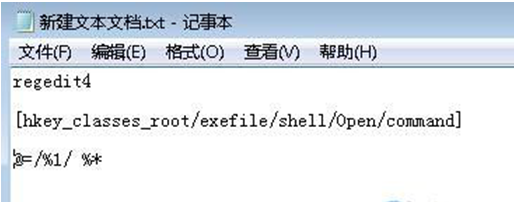
  1. 另存為 fix_exe.reg(副檔名必須是 .reg)。
  2. 雙擊該檔案,選「是」匯入登錄,完成後重開機即可。

方法二:透過資料夾選項重建關聯(圖形介面操作)

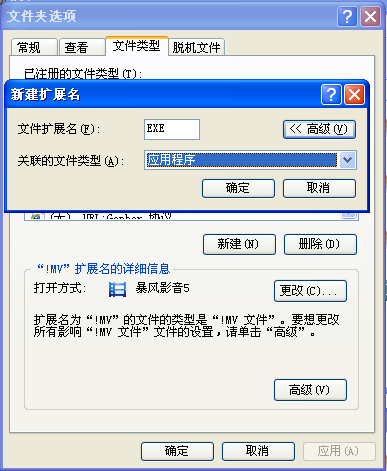
  1. 開啟「資料夾選項」→「檔案類型」頁籤(Win7 需在「控制台」→「預設程式」→「關聯檔案類型或通訊協定與程式」)。
  2. 找到 .exe 副檔名,若不在清單中,點「新增」輸入 exe,關聯程式選「Windows 型應用程式」或瀏覽指向 %SystemRoot%\System32\cmd.exe /c \"%1\" %*。
補充建議

  • 修復前先完整掃毒,排除病毒持續竄改註冊表。
  • 若方法一無效,嘗試以系統管理員身分執行 CMD,輸入 assoc .exe=exefile 並重開機。
  • 平時避免使用「開啟方式」隨意更改 .exe 關聯。
Copyright © Windows教程網 All Rights Reserved