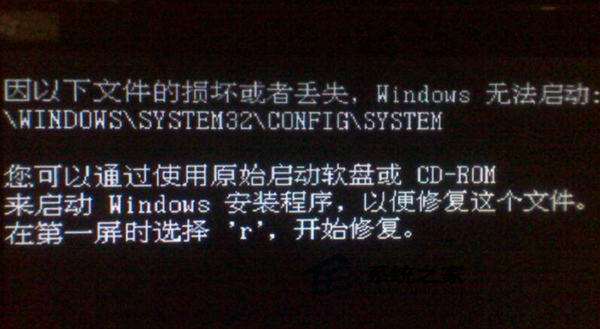
Windows 7 開機出現黑畫面,錯誤訊息 「Windows 無法啟動:\Windows\System32\Config\System」,代表 系統登錄配置單元 (System Hive) 損毀或遺失。登錄配置單元儲存於 C:\Windows\System32\Config\SYSTEM,損毀會導致核心無法載入驅動程式與服務設定。本文提供使用 Windows 7 安裝媒體進入修復環境,以備份登錄檔案還原修復的完整步驟。
md C:\Windows\Tmp
copy C:\Windows\System32\Config\SYSTEM C:\Windows\Tmp\SYSTEM.bak
copy C:\Windows\System32\Config\SOFTWARE C:\Windows\Tmp\SOFTWARE.bak
copy C:\Windows\System32\Config\SAM C:\Windows\Tmp\SAM.bak
copy C:\Windows\System32\Config\SECURITY C:\Windows\Tmp\SECURITY.bak
copy C:\Windows\System32\Config\DEFAULT C:\Windows\Tmp\DEFAULT.bak

del C:\Windows\System32\Config\SYSTEM
del C:\Windows\System32\Config\SOFTWARE
del C:\Windows\System32\Config\SAM
del C:\Windows\System32\Config\SECURITY
del C:\Windows\System32\Config\DEFAULT

copy C:\Windows\Repair\SYSTEM C:\Windows\System32\Config\SYSTEM
copy C:\Windows\Repair\SOFTWARE C:\Windows\System32\Config\SOFTWARE
copy C:\Windows\Repair\SAM C:\Windows\System32\Config\SAM
copy C:\Windows\Repair\SECURITY C:\Windows\System32\Config\SECURITY
copy C:\Windows\Repair\DEFAULT C:\Windows\System32\Config\DEFAULT
exit 離開命令提示字元,重新啟動電腦。C:\Windows\Repair\ 目錄包含 Windows 安裝初期的登錄配置單元備份(乾淨、無第三方軟體汙染)。Config 下五個核心配置單元 (SYSTEM, SOFTWARE, SAM, SECURITY, DEFAULT) 替換為 Repair 版本,即可讓核心順利載入基本驅動與服務進入桌面。系統還原會將登錄、系統檔案、程式檔案整體回溯,保留個人資料,比手動替換配置單元更完整、風險更低,優先建議使用。
setup.exe 選擇「升級」。chkdsk /f 修復檔案系統錯誤,減少登錄損毀機率。登錄配置單元損毀雖嚴重,但有安裝媒體與備份機制,系統還原 → 手動替換 Repair 版本 → 就地升級 → 重灌 循序漸進,總有一招能救回系統。