預設需右鍵「電腦」→「內容」→「裝置管理員」才能開啟,步驟較繁。透過匯入登錄檔,可直接在「電腦」右鍵選單新增「裝置管理員」選項,一鍵直達。
Windows Registry Editor Version 5.00

[HKEY_CLASSES_ROOT\CLSID\{20D04FE0-3AEA-1069-A2D8-08002B30309D}\shell\Devices]
@=hex(2):be,8b,07,59,a1,7b,06,74,68,56,2e,00,2e,00,2e,00,00,00
"SuppressionPolicy"=dword:4000003c
"Icon"="DeviceProperties.exe"

[HKEY_CLASSES_ROOT\CLSID\{20D04FE0-3AEA-1069-A2D8-08002B30309D}\shell\Devices\command]
@=hex(2):25,00,77,00,69,00,6e,00,64,00,69,00,72,00,25,00,5c,00,73,00,79,00,73,00,74,00,65,00,6d,00,33,00,32,00,5c,00,6d,00,6d,00,63,00,2e,00,65,00,78,00,65,00,20,00,2f,00,73,00,20,00,25,00,53,00,79,00,73,00,74,00,65,00,6d,00,52,00,6f,00,6f,00,74,00,25,00,5c,00,73,00,79,00,73,00,74,00,65,00,6d,00,33,00,32,00,5c,00,64,00,65,00,76,00,6d,00,67,00,6d,00,74,00,2e,00,6d,00,73,00,63,00,20,00,2f,00,73,00,00,00

[HKEY_CLASSES_ROOT\CLSID\{20D04FE0-3AEA-1069-A2D8-08002B30309D}\shell\AdvSysProp]
@=hex(2):fb,7c,df,7e,5e,5c,27,60,2e,00,2e,00,2e,00,00,00
"Icon"="cliconfg.exe"

[HKEY_CLASSES_ROOT\CLSID\{20D04FE0-3AEA-1069-A2D8-08002B30309D}\shell\AdvSysProp\command]
@=hex(2):63,00,6f,00,6e,00,74,00,72,00,6f,00,6c,00,20,00,73,00,79,00,73,00,64,00,6d,00,2e,00,63,00,70,00,6c,00,00,00
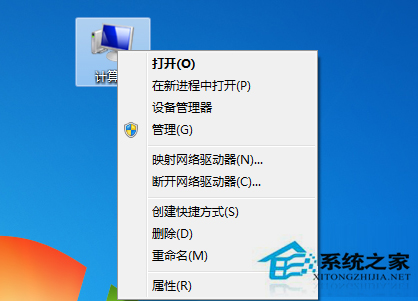
新增裝置管理員選單.reg,雙擊匯入登錄檔。匯入後,右鍵「電腦」即可看到「裝置管理員」與「進階系統屬性」兩個新選項。