想讓電腦每次關機自動清空暫存檔、瀏覽器快取?撰寫一支簡單的批次檔,掛載到「本機群組原則」的「關機」指令碼,即可實現零手動維護。
cleanup.bat,編輯內容:@echo off
echo 正在清理系統垃圾...
del /f /s /q %systemdrive%\*.tmp
del /f /s /q %systemdrive%\*.log
del /f /s /q %windir%\prefetch\*.*
rd /s /q %windir%\temp & mkdir %windir%\temp
del /f /q %userprofile%\cookies\*.*
del /f /q %userprofile%\recent\*.*
del /f /s /q "%userprofile%\Local Settings\Temporary Internet Files\*.*"
del /f /s /q "%userprofile%\Local Settings\Temp\*.*"
echo 清理完成!
pause
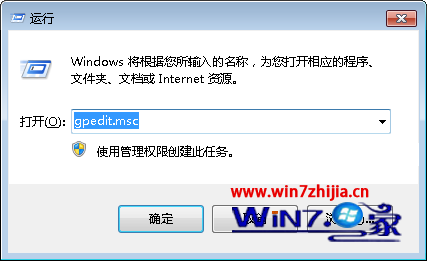
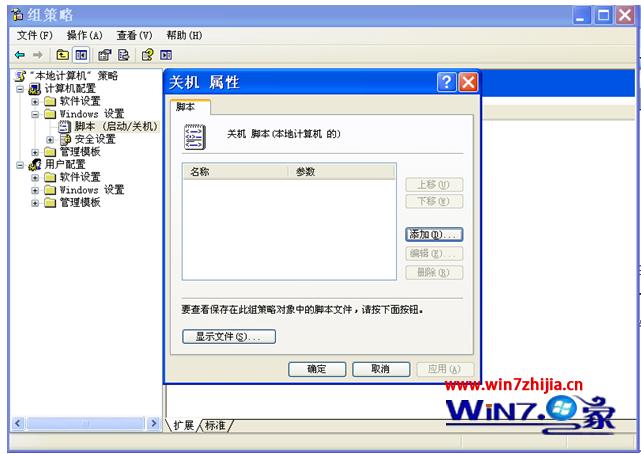
gpedit.msc 開啟群組原則編輯器。cleanup.bat → 確定層層退出。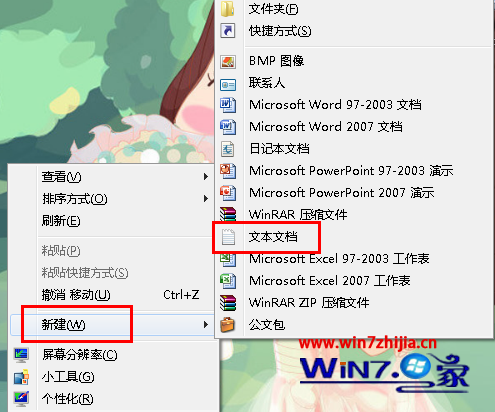
注意:① 家用版無 gpedit.msc,可改用「工作排程器」觸發「關機事件」執行同樣 bat;② 腳本中路徑變數(%windir%、%userprofile%)自動適配不同安裝盤符;③ pause 僅供測試觀察,正式部署建議移除以無感執行。