「開始 → 所有程式 → 附屬應用程式」中找不到「寫字板」、「畫圖」等系統內建工具,通常因捷徑遺失或註冊表項目損壞。
write (寫字板) 或 mspaint (畫圖)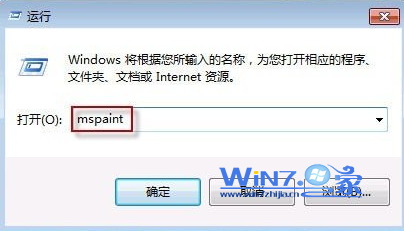
%ProgramData%\Microsoft\Windows\Start Menu\Programs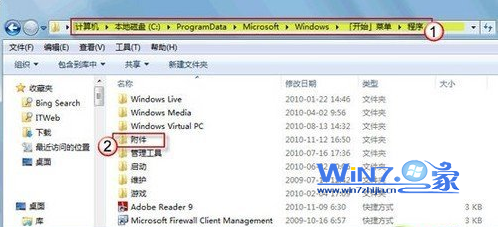
write.exe / mspaint.exe / notepad.exe / snippingtool.exe%AppData%\Microsoft\Windows\Start Menu\Programs\Accessoriessfc /scannowDISM /Online /Cleanup-Image /RestoreHealth| 工具 | 執行指令 | 路徑 |
|---|---|---|
| 寫字板 | write / wordpad | %ProgramFiles%\Windows NT\Accessories\wordpad.exe |
| 畫圖 | mspaint | %SystemRoot%\System32\mspaint.exe |
| 記事本 | notepad | %SystemRoot%\System32\notepad.exe |
| 截圖工具 | snippingtool | %SystemRoot%\System32\SnippingTool.exe |
| 計算機 | calc | %SystemRoot%\System32\calc.exe |
| 便箋 | StikyNot | %SystemRoot%\System32\StikyNot.exe |
| 數學輸入面板 | mip | %SystemRoot%\System32\mip.exe |