桌面/工作列/資料夾圖示變白紙、黑塊、錯誤圖示,乃 IconCache.db 及縮圖快取損毀所致。
rem 關閉 Windows 殼程序 explorer
taskkill /f /im explorer.exe

rem 清理系統圖示快取資料庫
attrib -h -s -r "%userprofile%\AppData\Local\IconCache.db"
del /f "%userprofile%\AppData\Local\IconCache.db"
attrib /s /d -h -s -r "%userprofile%\AppData\Local\Microsoft\Windows\Explorer\*"
del /f "%userprofile%\AppData\Local\Microsoft\Windows\Explorer\thumbcache_32.db"
del /f "%userprofile%\AppData\Local\Microsoft\Windows\Explorer\thumbcache_96.db"
del /f "%userprofile%\AppData\Local\Microsoft\Windows\Explorer\thumbcache_102.db"
del /f "%userprofile%\AppData\Local\Microsoft\Windows\Explorer\thumbcache_256.db"
del /f "%userprofile%\AppData\Local\Microsoft\Windows\Explorer\thumbcache_1024.db"
del /f "%userprofile%\AppData\Local\Microsoft\Windows\Explorer\thumbcache_idx.db"
del /f "%userprofile%\AppData\Local\Microsoft\Windows\Explorer\thumbcache_sr.db"

rem 清理 系統托盤記憶的圖示
echo y|reg delete "HKEY_CLASSES_ROOT\Local Settings\Software\Microsoft\Windows\CurrentVersion\TrayNotify" /v IconStreams
echo y|reg delete "HKEY_CLASSES_ROOT\Local Settings\Software\Microsoft\Windows\CurrentVersion\TrayNotify" /v PastIconsStream

rem 重啟 Windows 殼程序 explorer
start explorer
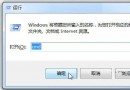
%USERPROFILE%\AppData\Local → Enter。IconCache.db → 刪除。適用 Win7 / Vista / Server 2008。
@echo off
title win7桌面圖示黑塊修復工具
reg delete "hkcu\Software\Microsoft\Windows\CurrentVersion\Explorer\Shell Icons" /f
reg delete "hklm\SOFTWARE\Microsoft\Windows\CurrentVersion\Explorer\Shell Icons" /f
taskkill /f /im explorer.exe & start explorer.exe
存為 桌面圖示黑塊修復器.bat → 執行。
上述方法皆屬「刪除舊快取 → 系統自動重建新快取」,本質相同,擇一執行即可。