舊版 Edge (EdgeHTML) 預設搜尋引擎為 Bing,若習慣 Google、百度、DuckDuckGo 等,可在進階設定中新增並設為預設。
操作步驟
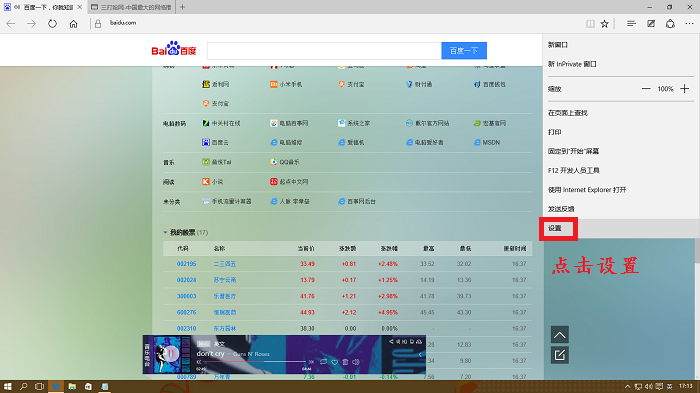
- 開啟 Edge → 右上角 「...」→「設定」。
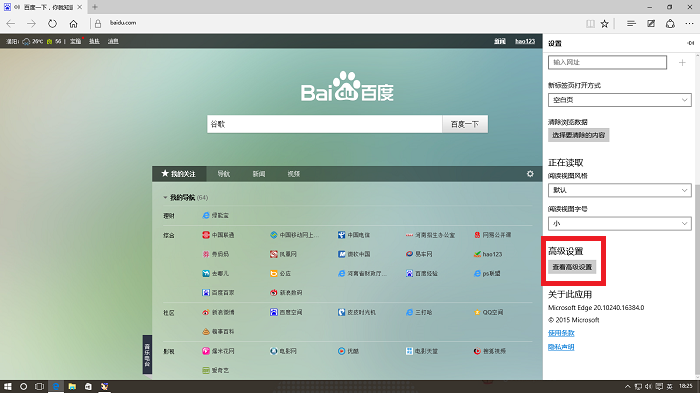
- 向下捲動點擊 「檢視進階設定」。
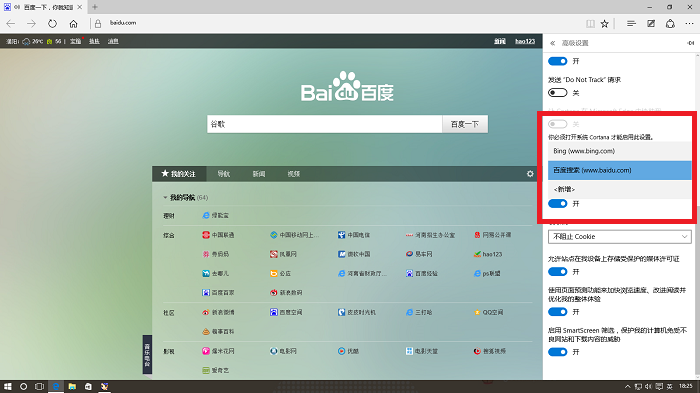
- 在「位址列搜尋」區,點擊 「新增」。
- 輸入搜尋引擎名稱 (如 Google) 與 URL 範本 (需支援 OpenSearch),或直接從列表選擇已偵測的引擎 (若已造訪過該搜尋網站)。
- 選擇該引擎並點擊 「設為預設」。
新版 Chromium Edge (v79+) 設定路徑
「設定」→「隱私權、搜尋與服務」→ 底部「位址列與搜尋」→ 「搜尋引擎」→ 管理/新增/設為預設。支援任意關鍵字搜尋引擎。