Win10 可為特定/所有 Wi-Fi 設定隨機 MAC 位址,防止公開場合被追蹤裝置位置。部分需硬體支援,有選項即可設定。
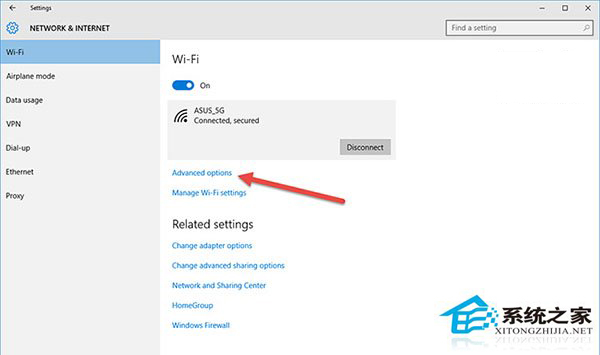
無選項者代表網卡/驅動不支援此功能,無法強制啟用。
Win10 D 槽變成「我的文件」?還原文件庫預設位置或移動回目標資料夾即可恢復
Win10 Insider 14257 已知問題彙總:重置電腦失效、WSClient.dll 錯誤、RealSense 相機不支援
Win 10 建立自動關機任務:工作排程器設定閒置觸發 + shutdown 指令,下載完成自動關機
Win10 瀏覽器字體亂碼?用開發人員工具定位問題字型並重裝
Windows 10 將滑鼠左鍵改為右鍵功能的設定教學(左撇子福音)
USB 裝置無法識別?三招解決 Win10 「無法辨識 USB 裝置」錯誤