Win10 內建語音辨識服務支援 Cortana 語音控制,但常駐背景佔用 CPU/記憶體/麥克風權限。若不使用語音功能,建議停用開機自動啟動,釋放資源並保護隱私。
關閉步驟(控制台介面)
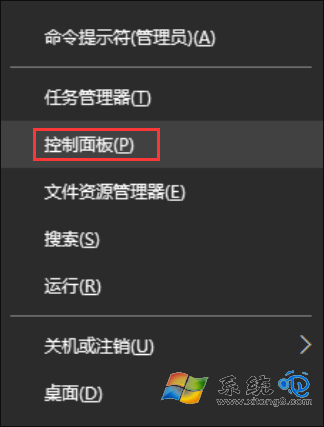
- 右鍵開始按鈕 →「控制台」(或 Win+R →
control)。
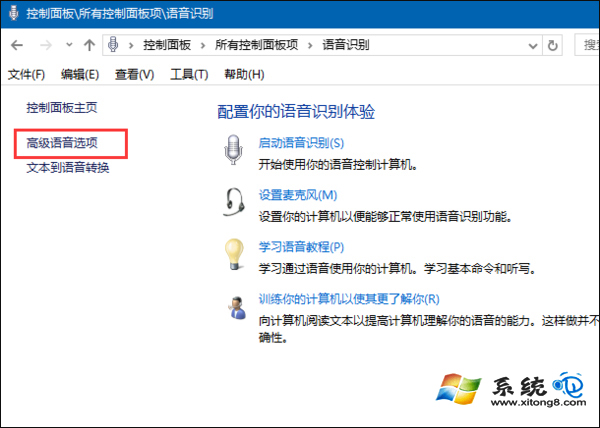
- 檢視模式改「大圖示」→ 點擊「語音辨識」。
- 左側選單點擊「進階語音選項」。
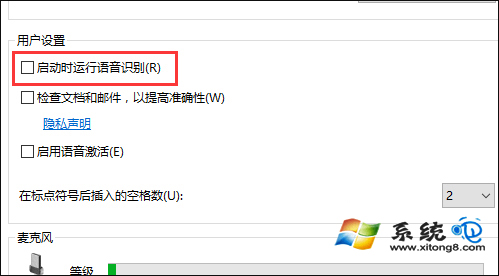
- 在「語音屬性」視窗,「使用者設定」區塊取消勾選「啟動時執行語音辨識」。
- 確定儲存,重新開機生效。
進階:停用相關服務(服務管理員)
- Win+R →
services.msc。
- 找到 Windows Speech Recognition、Speech Runtime 等相關服務。
- 啟動類型改「停用」或「手動」。
影響範圍
| 功能 | 影響 |
|---|
| Cortana 語音喚醒 | ❌ 無法使用「Hey Cortana」 |
| 語音輸入 (Win+H) | ❌ 無法使用 |
| 語音辨識控制視窗 | ❌ 無法啟動 |
| Cortana 文字搜尋 | ✅ 正常運作 |
| 系統資源佔用 | ✅ 明顯降低 |
隱私權建議
- 設定 → 隱私權 → 語音 → 關閉「線上語音辨識」。
- 設定 → 隱私權 → 傳入語音 → 清除裝置語音資料。
- 若使用麥克風,建議實體靜音開關或軟體靜音,防止背景收音。