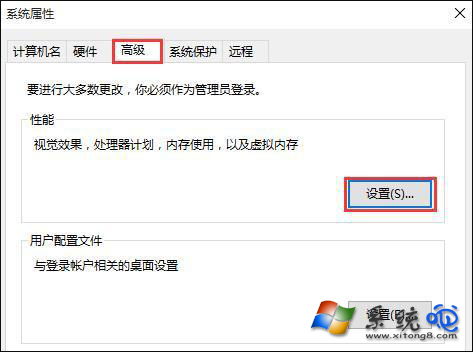
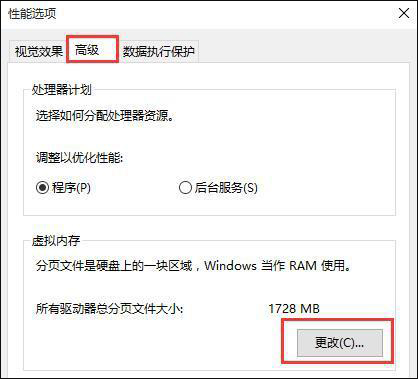
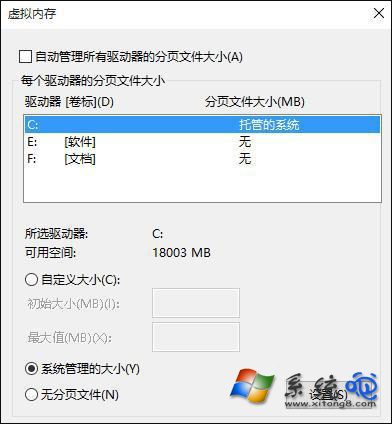
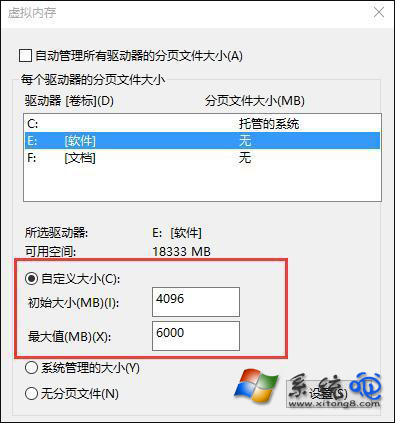
實體記憶體不足時 Windows 會用硬碟空間當虛擬記憶體(分頁檔)。預設自動管理可能過小,導致大型程式/遊戲彈出「虛擬記憶體不足,將關閉應用程式」。手動設定分頁檔最小值為實體記憶體 2 倍、最大值 4 倍,並放在非系統盤,即可緩解。
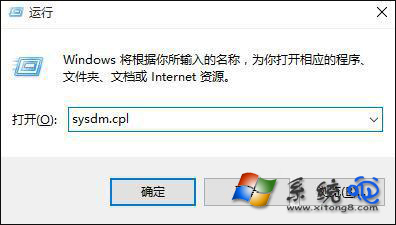
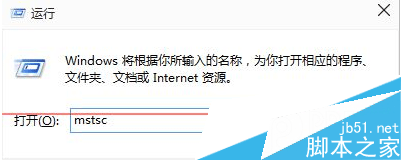
sysdm.cpl
分頁檔放在 SSD 速度最快,但頻繁讀寫略減壽命;HDD 較慢但無壽命顧慮。根本解決仍是加裝實體記憶體,虛擬記憶體只能緩兵之計。
Win10 應用商店/更新出現 80072efd 錯誤?關閉防火牆安全軟體或加入白名單解決連線被阻擋
Win10 開機自啟動管理完全指南:兩種開啟「啟動項管理器」方法與優化建議
Windows 10 徹底清空回收站釋放硬碟空間:魔方壓縮存取隱藏 SID 資料夾刪除殘留檔案
Win10 小娜助手是什麼?專為中國市場定制的 Cortana 語音助理
硬碟安裝 Win10 單/雙系統詳細步驟:軟媒硬碟裝機工具
Windows 10 為什麼費電?深度剖析耗電元兇與優化對策
Win10 鎖定畫面顯示網路圖示不安全?教你用登錄檔隱藏網路按鈕
Win10 新增資料夾/重新命名卡死怎麼辦?清除檔案總管歷程記錄即時解決