Windows XP Windows 7 Windows 2003 Windows Vista Windows 綜合教學 Linux 系統教學
Windows 10 Windows 8 Windows 2008 Windows NT Windows Server 電腦軟體教學

Win10 檔案複製到 USB 提示「磁碟受寫入保護」?登錄檔一鍵解除

編輯:Windows 10 系統介紹

將檔案複製到隨身碟時跳出「磁碟受寫入保護」,明明沒鎖實體開關。這通常是登錄檔 WriteProtect 值被設為 1 所致。新增 StorageDevicePolicies 鍵並設定 WriteProtect = 0,重開機即可恢復寫入。

修改登錄檔解除寫入保護

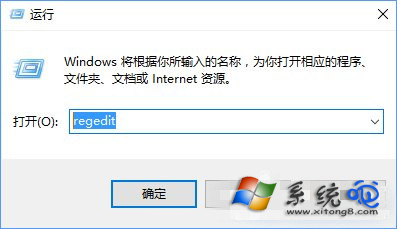
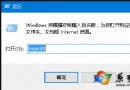
  1. Win + R → regedit。
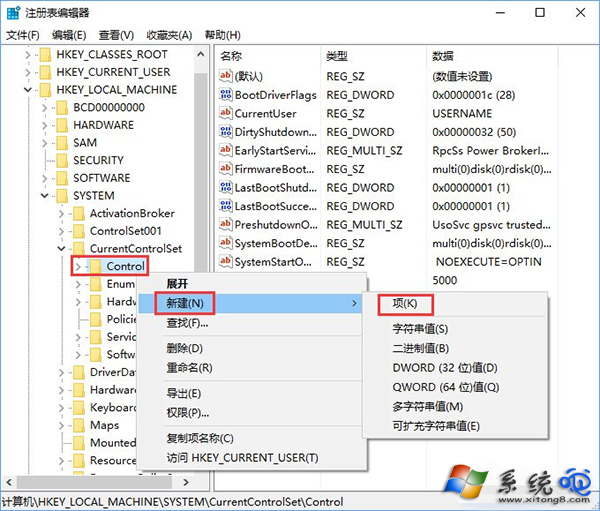
  2. 導覽至:
    HKEY_LOCAL_MACHINE\SYSTEM\CurrentControlSet\Control
  3. 右鍵 Control → 新增 → 機碼,命名 StorageDevicePolicies。
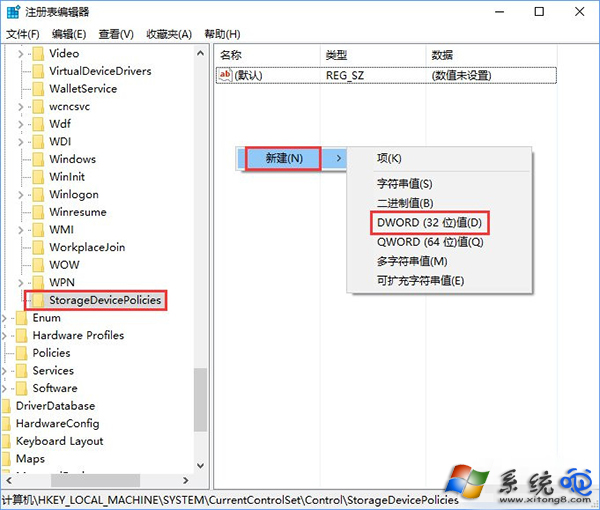
  4. 進入該機碼,右鍵空白處 → 新增 → DWORD (32 位元) 值,命名 WriteProtect。
  5. 雙擊確認數值為 0(十六進位/十進位皆可),確定。
  6. 重開機生效。

若修改後仍無法寫入,請檢查隨身碟實體鎖定開關、嘗試其他 USB 埠、或用 diskpart 清除唯讀屬性(attributes disk clear readonly)。

Copyright © Windows教程網 All Rights Reserved