Windows XP Windows 7 Windows 2003 Windows Vista Windows 綜合教學 Linux 系統教學
Windows 10 Windows 8 Windows 2008 Windows NT Windows Server 電腦軟體教學

Win10 更改資料夾圖示完整教學:內建素材與自訂 .ico 檔案雙軌操作

編輯:Windows 10 系統介紹

Windows 允許為任意資料夾指定專屬圖示,方便視覺分類專案、資料類型或優先級。Win10 操作路徑:資料夾右鍵 → 內容 → 自訂 → 更改圖示,支援系統內建 shell32.dll、imageres.dll 圖示庫,亦可瀏覽自訂 .ico 檔案。

操作步驟

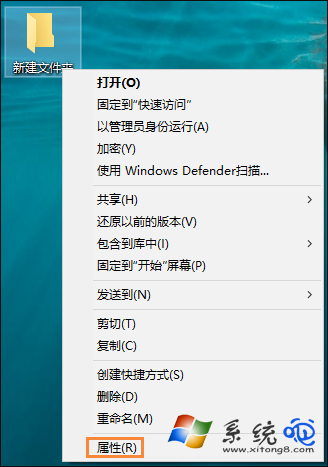
  1. 右鍵目標資料夾 → 「內容」。
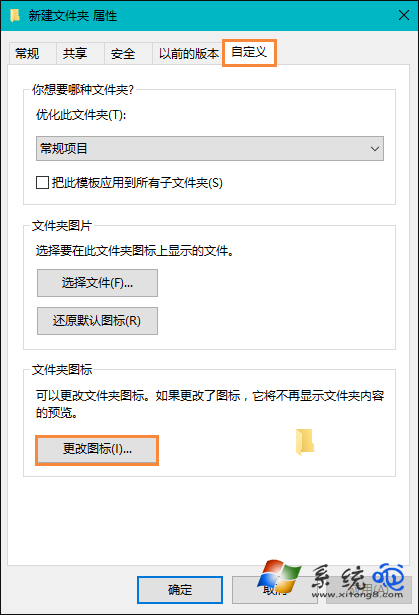
  2. 切換至 「自訂」 索引標籤 → 點擊 「更改圖示...」。
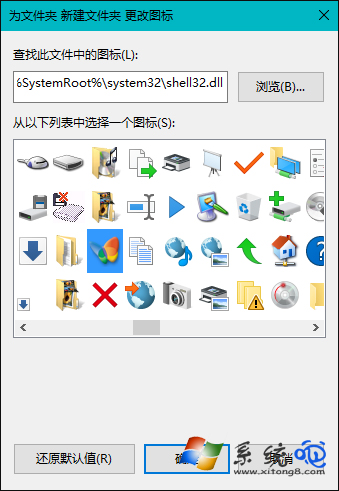
  3. 預設顯示 %SystemRoot%\system32\SHELL32.dll 圖示庫,可直接選取。
    若需系統更多圖示,點擊「瀏覽...」輸入下列路徑:
    %SystemRoot%\system32\imageres.dll (現代風格圖示較豐富)
    %SystemRoot%\system32\ddores.dll (資料夾專用圖示)
  4. 或點擊「瀏覽...」選擇自備 .ico 檔案 (建議 256×256 px、含多解析度層)。
  5. 確定 → 套用 → 確定,資料夾圖示即時更新。

資料夾內容 - 自訂索引標籤

更改圖示對話框

選擇系統圖示

瀏覽自訂 ico 檔案

進階技巧

  • 批次套用:將自訂 desktop.ini 複製至多個資料夾,內容範例:
    [.ShellClassInfo]
    IconResource=C:\Icons\Project.ico,0
    IconFile=C:\Icons\Project.ico
    IconIndex=0
  • 還原預設:在「更改圖示」對話框點擊「還原預設值」。
  • 網路磁碟/雲端同步資料夾:圖示變更需本機重新整理 (F5) 或重啟 Explorer 生效。

取得高品質 .ico 素材來源

  • IconFinder (可依授權篩選免費商用)
  • Icons8 (支援線上調色、多尺寸匯出)
  • Flaticon (需註冊、註明作者)

善用「自訂」索引標籤的「更改圖示」,配合 imageres.dll 內建素材或自訂 .ico,即可打造直覺好辨識的資料夾視覺系統。

Copyright © Windows教程網 All Rights Reserved