Microsoft Store 報錯 0x80010108 通常源於 Windows Update 快取損壞或殘留的舊版更新檔案干擾商店授權流程。透過停止服務、刪除 SoftwareDistribution 子資料夾、重啟服務的標準重置流程,可徹底清除「垃圾」並恢復商店正常下載。
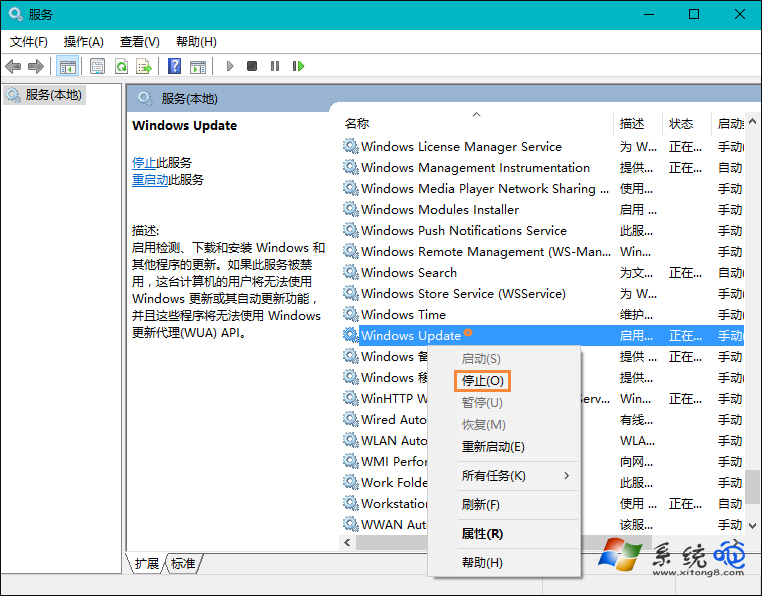
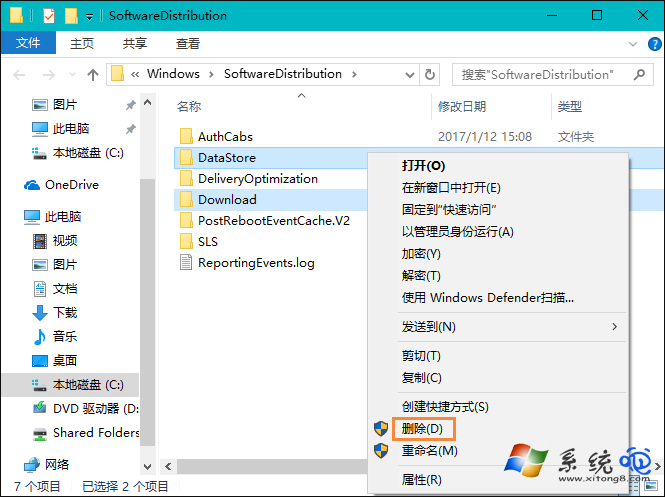
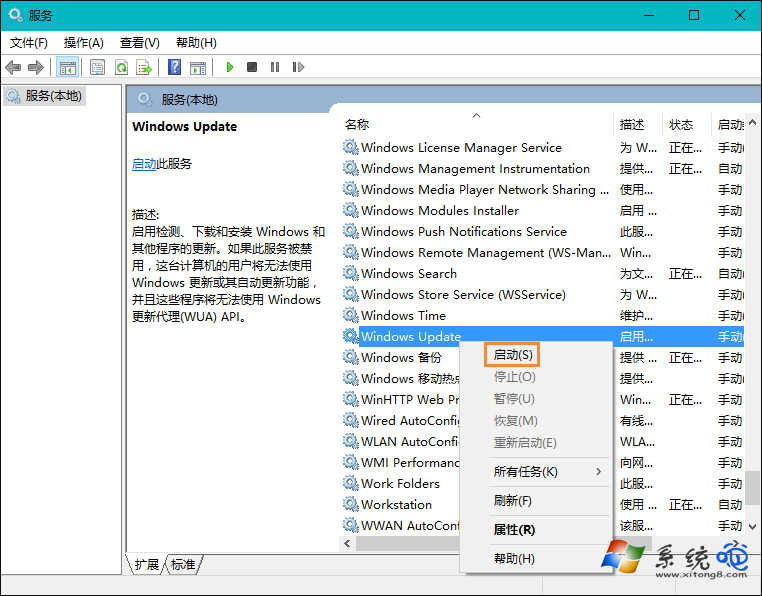
services.msc → 找到 Windows Update → 右鍵 停止。C:\Windows\SoftwareDistribution,刪除下列兩個資料夾:DataStore (更新偵測快取)Download (更新安裝檔快取)
services.msc → 右鍵 Windows Update → 啟動。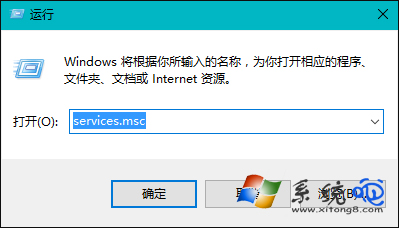
Stop-Service wuauserv -Force
Remove-Item -Recurse -Force C:\Windows\SoftwareDistribution\DataStore, C:\Windows\SoftwareDistribution\Download
Start-Service wuauserv
# 可選:重置 Store 快取
wsreset.exeDISM /Online /Cleanup-Image /RestoreHealth 修復元件存儲。Get-AppXPackage -AllUsers -Name Microsoft.WindowsStore | Foreach {Add-AppxPackage -DisableDevelopmentMode -Register "$($_.InstallLocation)\AppXManifest.xml"}
*.microsoft.com、*.windowsstore.com。重置 Windows Update 快取是解決 0x80010108 的核心方案,配合 wsreset 與 DISM 修復,成功率超過 95%。