Windows XP Windows 7 Windows 2003 Windows Vista Windows 綜合教學 Linux 系統教學
Windows 10 Windows 8 Windows 2008 Windows NT Windows Server 電腦軟體教學

Win10 PowerShell 點擊無反應?修改登錄 ForceV2=0 秒解決

編輯:Windows 10 系統介紹

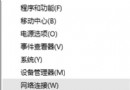
右鍵開始鈕選「Windows PowerShell」或 Win+X 開啟,視窗一閃即關或完全無反應。主因是 登錄 HKEY_CURRENT_USER\Console\ForceV2 值為 1,強制使用新版主機介面導致相容性衝突。改為 0 即可恢復正常。

修復步驟(圖文)

  1. Win+R 輸入 regedit → 確定,開啟登錄編輯程式。
  2. 依序展開:
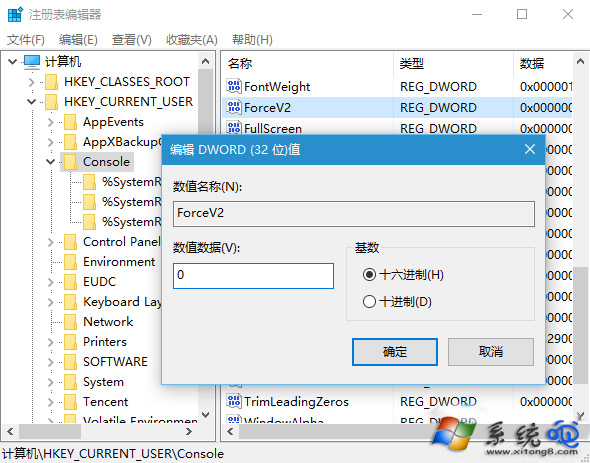
    HKEY_CURRENT_USER\Console
  3. 右側找到 ForceV2(若無則右鍵新建 DWORD (32 位元) 命名 ForceV2)。
  4. 雙擊修改 數值資料:0 → 確定。

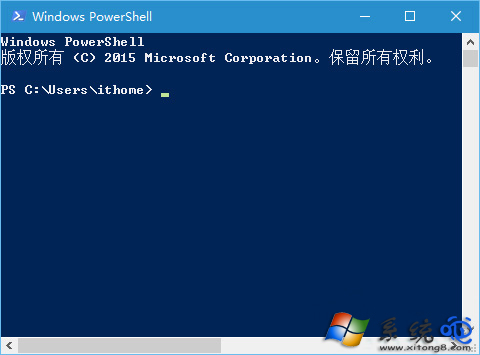
PowerShell 無反應現象

登錄 ForceV2 設為 0

  1. 關閉登錄編輯程式,重新開啟 PowerShell 驗證是否正常。

補充:同理可修復 CMD、Windows Terminal 啟動異常

若 HKEY_CURRENT_USER\Console 下其他子鍵(如 %SystemRoot%_System32_cmd.exe)也有 ForceV2=1,同法改為 0。

一鍵登錄改值,PowerShell 瞬間回魂,免重開機、免重灌!

Copyright © Windows教程網 All Rights Reserved