Windows XP Windows 7 Windows 2003 Windows Vista Windows 綜合教學 Linux 系統教學
Windows 10 Windows 8 Windows 2008 Windows NT Windows Server 電腦軟體教學

Windows 10 Build 9879 更新步驟:Insider 通道手動檢查更新

編輯:Windows 10 系統介紹

Windows 10 Technical Preview Build 9879 推送至 Insider 「快速」通道,若未自動下載,可手動觸發檢查。本文提供標準更新路徑與故障排查。
標準更新路徑

  1. 「開始」→「設定」→「更新與安全性」→「Windows Update」。
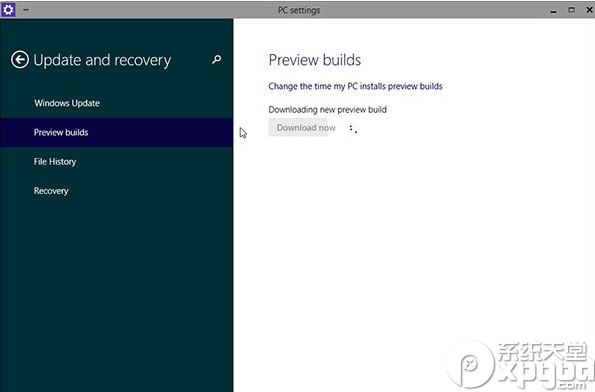
  2. 左側/上方「進階選項」→「取得 Insider Preview 版本」。
  3. 確認已登入 Microsoft 帳號並加入 Insider 計畫。
  4. 選擇「快速」通道 (Fast Ring)。
  5. 返回 Windows Update 頁面 → 「檢查更新」。
  6. 發現「Windows 10 Technical Preview Build 9879」→ 「下載」→ 「安裝」→ 重開機數次完成。

Insider 設定頁面

常見問題與對策

現象原因對策
「檢查更新」轉圈無結果更新服務卡住/快取損毀管理員 CMD 執行 net stop wuauserv && rd /s /q %windir%\SoftwareDistribution && net start wuauserv 重置
下載卡在 0%/99%網路/伺服器/磁碟空間不足換網路/清理 C 槽預留 20GB+ / 稍後重試
安裝失敗 0x80240034元件存儲損毀DISM /Online /Cleanup-Image /RestoreHealth + sfc /scannow
未顯示 Insider 選項未加入 Insider / 帳號未驗證insider.windows.com 登入加入 → 重開機 → 重試

離線安裝替代方案

  • 若線上更新持續失敗,至 Microsoft 官網 / MSDN / I Tell You 下載 Build 9879 ISO。
  • 掛載 ISO → 執行 setup.exe 選「升級:保留個人檔案和應用程式」進行就地升級。
  • 或乾淨安裝 (格式化分區) 獲得最乾淨環境。

更新後驗證

  1. Win+R winver → 確認版本號 10.0.9879。
  2. 開始選單出現「快速存取」、IE11 有笑臉按鈕、任務列可隱藏搜尋/工作檢視。
  3. 設定 → 更新與安全性 → Windows Update → 「更新記錄」查看安裝成功紀錄。
Copyright © Windows教程網 All Rights Reserved