Windows XP Windows 7 Windows 2003 Windows Vista Windows 綜合教學 Linux 系統教學
Windows 10 Windows 8 Windows 2008 Windows NT Windows Server 電腦軟體教學

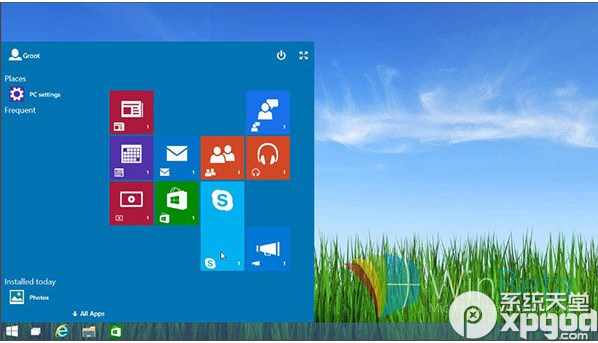
Win10 啟用 Continuum 模式體驗全新開始畫面(登錄修改教學)

編輯:Windows 10 系統介紹

Windows 10 Build 9879 隱藏了一個早期版本的 Continuum 模式開始畫面,專為觸控裝置設計。透過登錄修改可啟用體驗,但該功能仍不穩定,建議僅供測試使用。

啟用步驟

  1. 開啟登錄編輯器(Win+R → regedit)。
  2. 瀏覽至:
    HKEY_LOCAL_MACHINE\SOFTWARE\Microsoft\Windows\CurrentVersion\ImmersiveShell\Launcher
    若無 Launcher 索引鍵,請手動新增。
  3. 在右側新增 DWORD (32 位元) 值,名稱為 UseExperience,數值設為 1。
  4. 重新啟動總管:
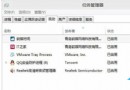
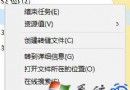
    按 Ctrl+Shift+Esc 開啟工作管理員 → 檔案 → 執行新工作 → 輸入 explorer.exe → 勾選「以系統管理員權限建立」 → 確定。

Continuum 模式開始畫面

恢復預設開始選單

將 UseExperience 數值改回 0,再次重新啟動總管即可。

注意事項

  • 此為早期實驗功能,可能導致總管當機、開始選單無回應等問題。
  • 正式版 Windows 10 已整合平板模式,無需此登錄修改即可在觸控裝置自動切換。

若想提前體驗觸控優化的開始介面,可嘗試此法;正式使用建議等待穩定版本釋出。

Copyright © Windows教程網 All Rights Reserved