Windows XP Windows 7 Windows 2003 Windows Vista Windows 綜合教學 Linux 系統教學
Windows 10 Windows 8 Windows 2008 Windows NT Windows Server 電腦軟體教學

更新 Flash 後無法播放影片?CMD 重新註冊 Flash.ocx 修復 ActiveX 元件

編輯:Windows 10 系統介紹

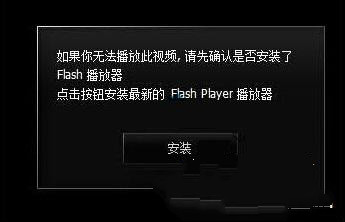
更新 Adobe Flash Player 後瀏覽器提示「未安裝 Flash」/無法播放,實為 ActiveX 元件 Flash.ocx 註冊失效。CMD 以管理員身分重新註冊 32/64 位元兩個路徑即可修復。

修復指令

  1. Win+R 輸入 cmd → Ctrl+Shift+Enter 以管理員身分開啟。
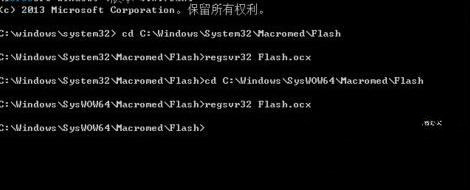
  2. 依序執行四行指令 (每行 Enter):
    cd C:\Windows\System32\Macromed\Flash
    regsvr32 Flash.ocx
    cd C:\Windows\SysWOW64\Macromed\Flash
    regsvr32 Flash.ocx
  3. 出現「DllRegisterServer 在 Flash.ocx 成功」對話框即成功。
  4. 重新開啟瀏覽器測試影片播放。

Flash播放錯誤提示

CMD重新註冊Flash.ocx

背景知識

  • System32 存放 64 位元元件,SysWOW64 存放 32 位元元件 (WoW64 子系統),IE/Edge 32/64 位元版本分別載入對應版本。
  • Flash 更新程式理應自動註冊,但權限不足/殺毒軟體攔截/路徑變更可能導致註冊失敗。
  • Flash 已於 2020/12/31 終止支援,現代瀏覽器皆移除 Flash 支援,建議遷移至 HTML5 影片播放。

遺留系統應對

若企業內部舊系統仍依賴 Flash,可使用 Ruffle (Rust 寫的 Flash 模擬器) 或 CheerpX for Flash (WASM 編譯) 在現代瀏覽器中運行 SWF,避免維護已停止支援的 Flash 運行環境。


Copyright © Windows教程網 All Rights Reserved