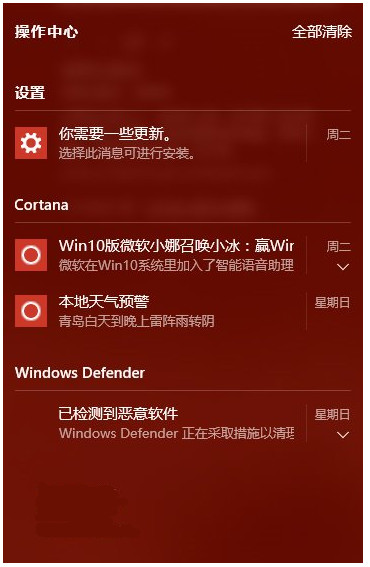
Win10「動作中心」(通知中樞)整合系統通知、快速動作(Wi-Fi、藍牙、飛行模式等),但頻繁彈出應用推廣、系統提示、更新提醒,干擾專注工作。若不需此功能,可透過登錄檔徹底停用,圖示隱藏、通知不再彈出、Win+A 無反應。
regedit 開啟登錄編輯器。HKEY_CURRENT_USER\SOFTWARE\Policies\Microsoft\Windows\ExplorerExplorer 索引鍵,右鍵 Windows > 新增 > 索引鍵 > 命名 Explorer。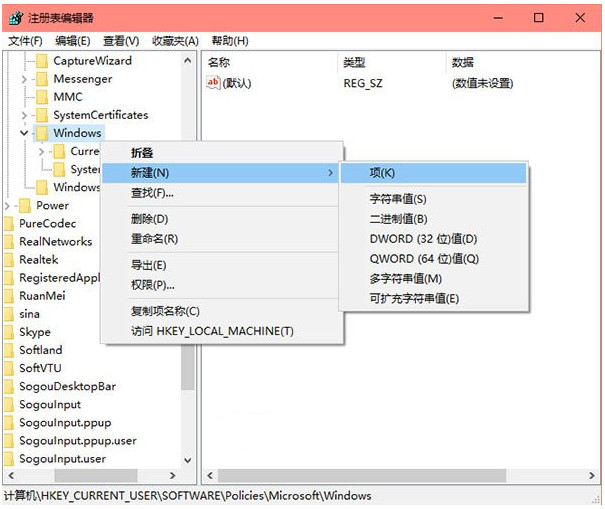
Explorer 下右鍵 > 新增 > DWORD (32 位元) 值,命名 DisableNotificationCenter。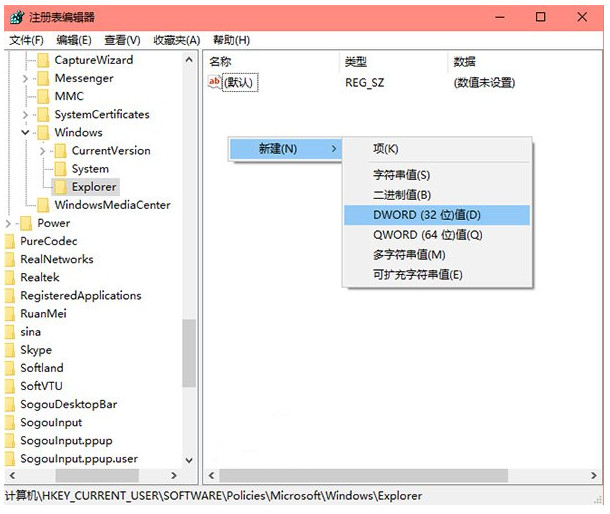
DisableNotificationCenter,數值資料改為 1(十六進位/十進位皆可),確定。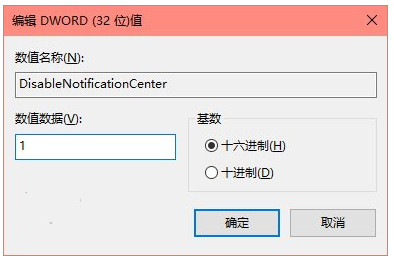
explorer.exe 生效。DisableNotificationCenter 值或改為 0,重啟 Explorer。若保留動作中心但不想被打擾:
設定 > 系統 > 通知與動作 > 關閉「取得來自應用程式和其他傳送者的通知」,或開啟「專注助理」(Focus Assist) 設為「僅優先清單」/「僅鬧鐘」。