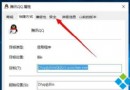
Windows 10 重寫開始選單,移除了 Win7 時代「在開始選單顯示『執行』」的勾選選項。「執行」 (Win+R) 屬特殊系統物件,非一般 .exe,無法直接右鍵釘選。解法:利用其 CLSID (GUID) {2559a1f3-21d7-11d4-bdaf-00c04f60b9f0} 建立 Shell 命名空間捷徑,再釘選該捷徑。
登錄編輯器 HKEY_CLASSES_ROOT\CLSID\{2559a1f3-21d7-11d4-bdaf-00c04f60b9f0} 可見名稱為「執行」/「Run」系統物件。
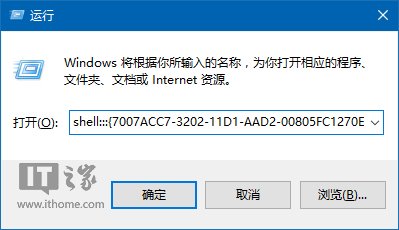

explorer.exe shell:::{2559a1f3-21d7-11d4-bdaf-00c04f60b9f0}C:\Windows\System32\imageres.dll 選擇適合圖示。 (多步驟示意圖)
C:\Windows\System32\gpedit.msc 屬一般 .msc 檔案,右鍵直接「釘選到開始畫面」即可,無需 CLSID 技巧。
shell:::{GUID} 為 Shell 命名空間延伸協定,Explorer 解析該 GUID 對應的 COM 物件並呈現對應 UI (此處為「執行」對話框)。捷徑本質上啟動 Explorer 並傳入命名空間參數,實現系統物件的捷徑化。