無光碟機環境下,透過硬碟啟動安裝 Windows Server 2008 是常見需求。本文詳細說明 32/64 位元差異、啟動磁區準備、WinPE 下格式化與執行安裝的完整流程。
bootsect.exe、format、diskpart)。F:\x64\)。32 位元環境無法執行 64 位元 bootsect.exe,需先複製 64 位元版本至硬碟:
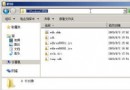
\boot 資料夾複製至 C:\boot。bootmgr 至 C:\。C:\ 建立 sources 資料夾,複製 F:\x64\sources\boot.wim 至 C:\sources\。bootsect.exe(可從 64 位元 ISO \boot 或 Windows 7/2008 R2 安裝媒體取得),放置 C:\。C:\bootsect /nt60 C:C:\boot\bootsect.exe(64 位元版)覆蓋執行一次。format C: /fs:ntfs /qdel bootsect.exedel bootmgrrd /s /q bootrd /s /q sourcesattrib -s -r -h 檔名 移除屬性)F:\x64\sources\setup.exe32 位元 ISO 內建 32 位元 bootsect.exe,可直接在 32 位元 WinPE 執行 bootsect /nt60 C:,**無需額外複製 64 位元 bootsect.exe**,其餘步驟相同。
| 錯誤 | 原因 | 對策 |
|---|---|---|
| bootsect.exe 非有效 Win32 應用程式 | 在 32 位元 PE 執行 64 位元 bootsect | 使用 64 位元 PE 或複製 32 位元 bootsect |
| 安裝程式找不到 boot.wim | sources\boot.wim 路徑錯誤 | 確認複製至 C:\sources\boot.wim |
| 重新啟動進入舊系統 | 啟動磁區未正確寫入 | 重新執行 bootsect /nt60 C: |
依循本流程,無論 32 或 64 位元,均可在無光碟機環境順利完成 Windows Server 2008 硬碟安裝。
Windows Server 2008 建立密碼重設磁碟完整教學
深入 Windows Server 2008 自我監控:事件觸發任務實現自動告警與安全防禦
Windows Server 2008 搭建終端服務器完整部署指南
Server Core 部署 IIS 7 + PHP FastCGI + MySQL 完整實戰手冊
Windows Server 2008 安裝 RAID/SAS 硬碟驅動程式完整圖文教程
Windows Server 2008 關機命令 shutdown -t 參數限制破解 (任務排程器實現長延遲關機)