在 Ubuntu 12.04 (KVM/QEMU) 環境建立 Windows Server 2008 映像檔供 OpenStack Glance 使用。關鍵點:預先建立 qcow2 虛擬磁碟、掛載 VirtIO ISO 注入半虛擬化驅動 (磁碟/網路)、VNC 圖形安裝、安裝過程手動載入 VirtIO 驅動讓安裝程式辨識磁碟與網卡。
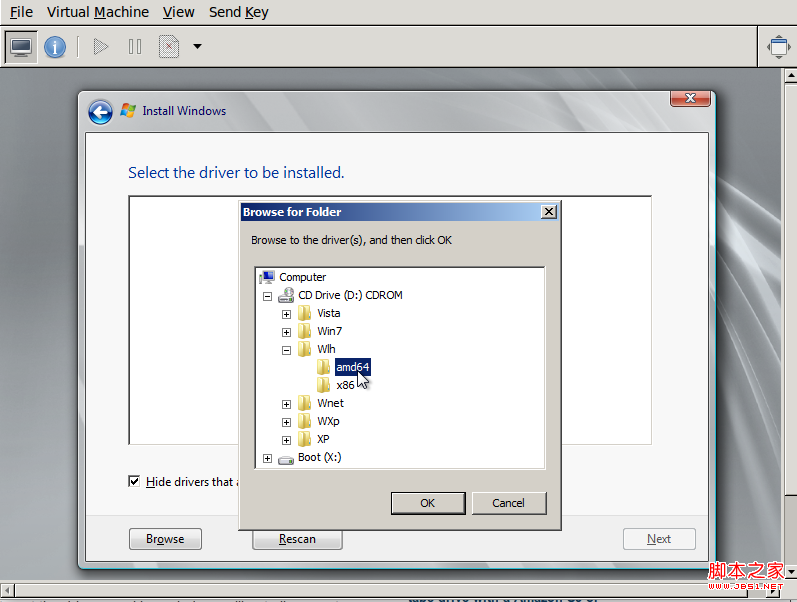
virtio-win-0.1-30.iso (Fedora 專案提供)windows2008.isowindowsserver.img (qcow2, 20 GB)kvm-img create -f qcow2 windowsserver.img 20Gkvm -m 1024 -cdrom windows2008.iso -drive file=windowsserver.img,if=virtio -boot d -drive file=virtio-win-0.1-30.iso,index=3,media=cdrom -device virtio-net-pci -net nic -net user -nographic -vnc :5vncviewer localhost:5viostor → 2k8 (或 wlh/win7) → x86 → 選擇 viostor.inf → 磁碟出現 → 繼續安裝NetKVM → 2k8 → x86 → netkvm.infwindowsserver.img 即可上傳至 Glance:glance image-create --name "Windows Server 2008" --disk-format qcow2 --container-format bare --file windowsserver.img --is-public true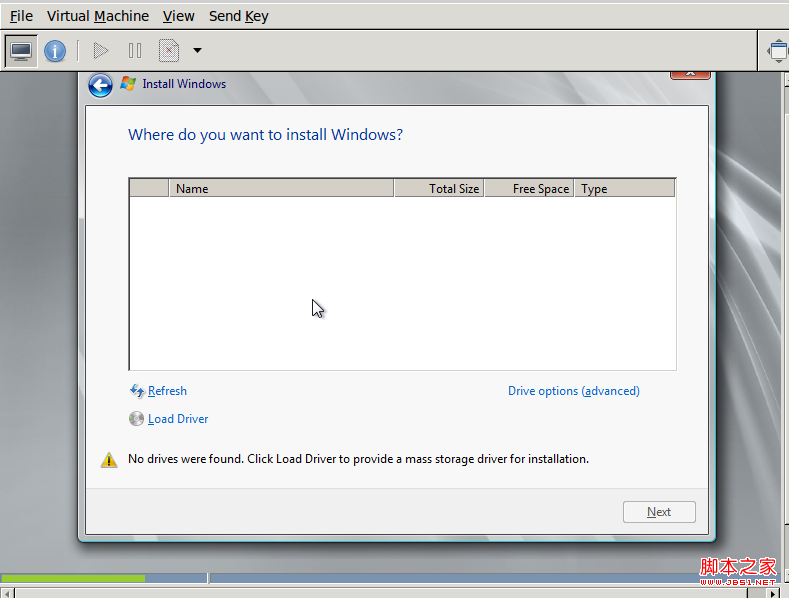
最佳化建議:
- 安裝完成後在客體內安裝qemu-guest-agent(Windows 版) 以支援 OpenStack 註入密碼、關機、快照等功能
- 使用virt-sysprep通用化映像檔 (移除 SID、重設網路、清理日誌) 供多租戶部署
- 生產環境建議使用packer+ansible自動化建構映像檔管線,確保可重現、可審計
修復 Windows 8/8.1 開機選單卡住倒數無法自動進入系統:BCD 編輯移除多餘啟動項
Windows Server 2008 版本差異完整解析:Standard、Enterprise、Datacenter、Web 與 Itanium 版比較
解決 Windows Server 2008 IIS 7.5 錯誤 500 內部伺服器錯誤不顯示詳細資訊:啟用詳細錯誤與自訂錯誤頁面
Windows Server 2008 啟用網路存取保護 (NAP) 完整部署指南:健康原則、驗證策略、網路原則、DHCP 強制
Windows Server 2008 防火牆進階配置技巧:netsh 指令一鍵掌握完整安全狀態