Windows XP Windows 7 Windows 2003 Windows Vista Windows 綜合教學 Linux 系統教學
Windows 10 Windows 8 Windows 2008 Windows NT Windows Server 電腦軟體教學

資料夾雙擊變搜尋?兩招修復關聯與清除 Rose 病毒

編輯:系統常見問題解答

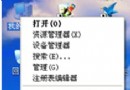
雙擊資料夾卻跳出「搜尋」視窗,或資料夾圖示異常,常見原因有二:.lnk/Directory 檔案關聯錯誤、或感染 Rose 病毒。

快速自測:是否中 Rose 病毒

  1. 「資料夾選項」→「檢視」→ 取消勾選「隱藏受保護的作業系統檔案」→ 勾選「顯示所有檔案與資料夾」。
  2. 開啟各磁碟根目錄,若同時存在 rose.exe 與 autorun.inf,確定中毒。

Rose 病毒手動清除步驟

  1. 工作管理員結束 rose.exe 程序。
  2. 刪除各磁碟根目錄下的 autorun.inf、rose.exe(含 USB 隨身碟)。
  3. 刪除系統檔案:
    C:\Windows\System32\run.reg
    C:\Windows\System32\systemdate.ini
    D:\systemfile.com(若存在)
  4. 登錄編輯器刪除鍵值:
    HKEY_LOCAL_MACHINE\SOFTWARE\Microsoft\Windows\CurrentVersion\Run 下的 dll 值。
  5. 重開機完成清除。

非病毒:修復資料夾關聯

方法一:登錄修正(推薦)

  1. regedit 定位至:
    HKEY_CLASSES_ROOT\Directory\shell
  2. 刪除 find 子鍵(若存在)。
  3. 重開機或重新啟動 explorer.exe。

方法二:資料夾選項重建「開啟」動作

  1. 「控制台」→「資料夾選項」→「檔案類型」→ 找到「資料夾」→「進階」。
  2. 「新增」動作:名稱 OpenNew,執行應用程式:explorer.exe %1。
  3. 將 OpenNew 設為預設動作。

排除病毒後套用上述修復,資料夾雙擊即可正常開啟。

Copyright © Windows教程網 All Rights Reserved